Uncategorized

arnold on Oct 29, 2018
***Update 11/10/2025***
Utilizing Google Analytics to Track Key Events
Utilizing Google Analytics to track key events is a pivotal aspect of digital marketing. A key event occurs when a website visitor completes a predefined action, providing a crucial data point that signifies a successful interaction.
Key events vary widely across different types of websites. For a blog, a key event might be defined as a subscription sign-up, whereas for a law firm, it might be a potential client calling to inquire about services.
If you operate a website and have not implemented key event tracking, you face a significant limitation in understanding your marketing efforts. Without this critical setup, even if your website generates numerous sales or receives a substantial volume of leads via the contact form, you will lack the ability to discern which specific marketing activities contributed to these key events.
This gap in data can lead to inefficient allocation of marketing resources, as it obscures which channels, campaigns, or strategies are effectively driving results. For instance, without key event tracking, you would not know whether a recent uptick in sales was due to a new advertising campaign, an organic social media post, or changes in search engine optimization strategies. Essentially, key event tracking provides the linkage between marketing actions and outcomes, enabling businesses to optimize their marketing investments and strategically refine their tactics based on performance-driven insights.
Consider an e-commerce platform, where a typical key event involves a purchase. This key event is tracked by embedding a specific code on the ‘thank you’ page, which is displayed only after a transaction is completed successfully. If a website visitor follows a link from a Facebook post to your website and completes a purchase, the embedded key event code is triggered. This allows analysts to attribute the sale directly to the social media activity, offering insights into the effectiveness of the campaign.
Setting Up Key Events In Google Analytics 4
In Google Analytics 4, key events are configured as events, allowing for customization of what constitutes a key event based on specific interactions with the website.
In GA4, an event is a distinct user interaction or system occurrence on your website or app that you want to track and measure. Here are some examples of events:
- Page view: The act of a user loading a page on your website. This is the initial baseline action – their browser has opened the webpage.
- Clicking a button: A user clicking or tapping an interactive element on your website (like a link, form submit button, or call-to-action). This shows interest and engagement beyond just loading the page.
- Scrolling down a page: A user scrolling their screen down a webpage. This indicates that the user is actively looking at the content, not just passively having the page open.
- Purchasing a product: A user completing a transaction and purchasing an item or service on your website. This is a key action goal for many websites.
- App crash: An unexpected error or failure of an app, causing it to stop functioning correctly. This is typically a negative event that disrupts the user’s experience.
If an event represents a particularly valuable customer action, you can mark it as a key event. In GA4, marking an event as a key event tells the platform that this specific event signifies a significant user action that contributes to your overall business goals. We’ll set up key events in a bit, but first, let’s set up a couple of simple events to track…
How To Set Up An Event In Google Analytics 4:
For our first example we will set up a simple event in GA4 where we will track if someone visits the contact page of our website. Once the event is set up we will then configure it as a conversion.
***To start we need to locate the contact page of our website. For this website my contact page is located at: https://thedigitalmarketingprofessor.com/contact
If you do not have a contact page you need to make one. (Pages-> Add New). ***
Next will set up an event that tracks if a person visits the contact page.
Navigate to Admin: In your GA4 dashboard, click the gear icon in the bottom left corner to access “Admin”.
Locate Events: Under the “Property” column, click “Events”.

Create New Event: Click the “Create event” button 
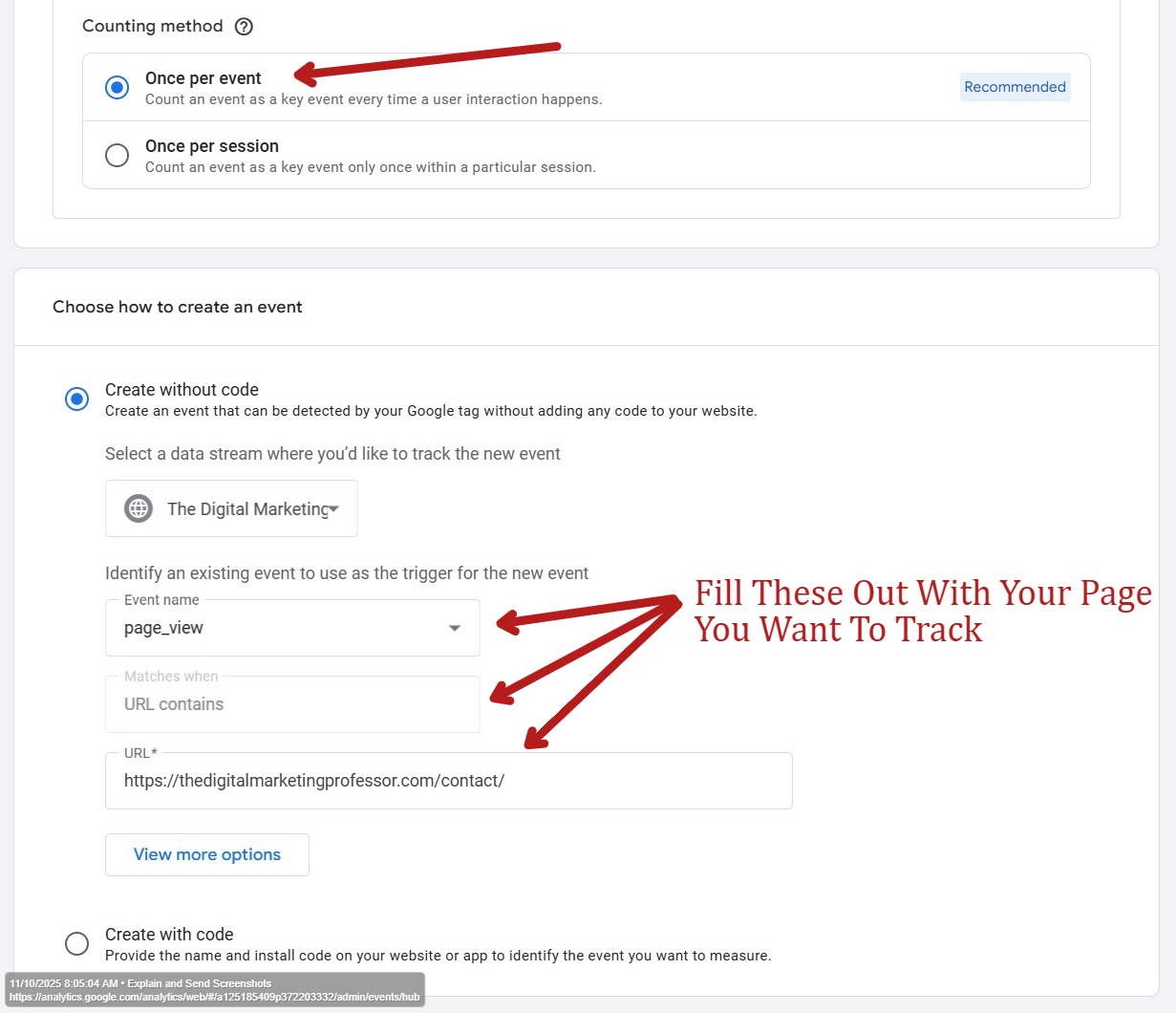
Name Your Event: Give your event a descriptive name (e.g., “contact_page_visit”).
Do Not Set A Default Value For A Page View
Set It to Once Per Event
Matching Conditions:
Select “Page_View” from the dropdown.
Set the condition to “URL contains”
For the URL enter your url of your contact page.(Make sure there is no / at the end of your url in the value parameter below)
Then Select CREATE
What we are doing here is just letting GA4 know that our contact_page_visit event should be recorded if some visits the page_location of the contact form.

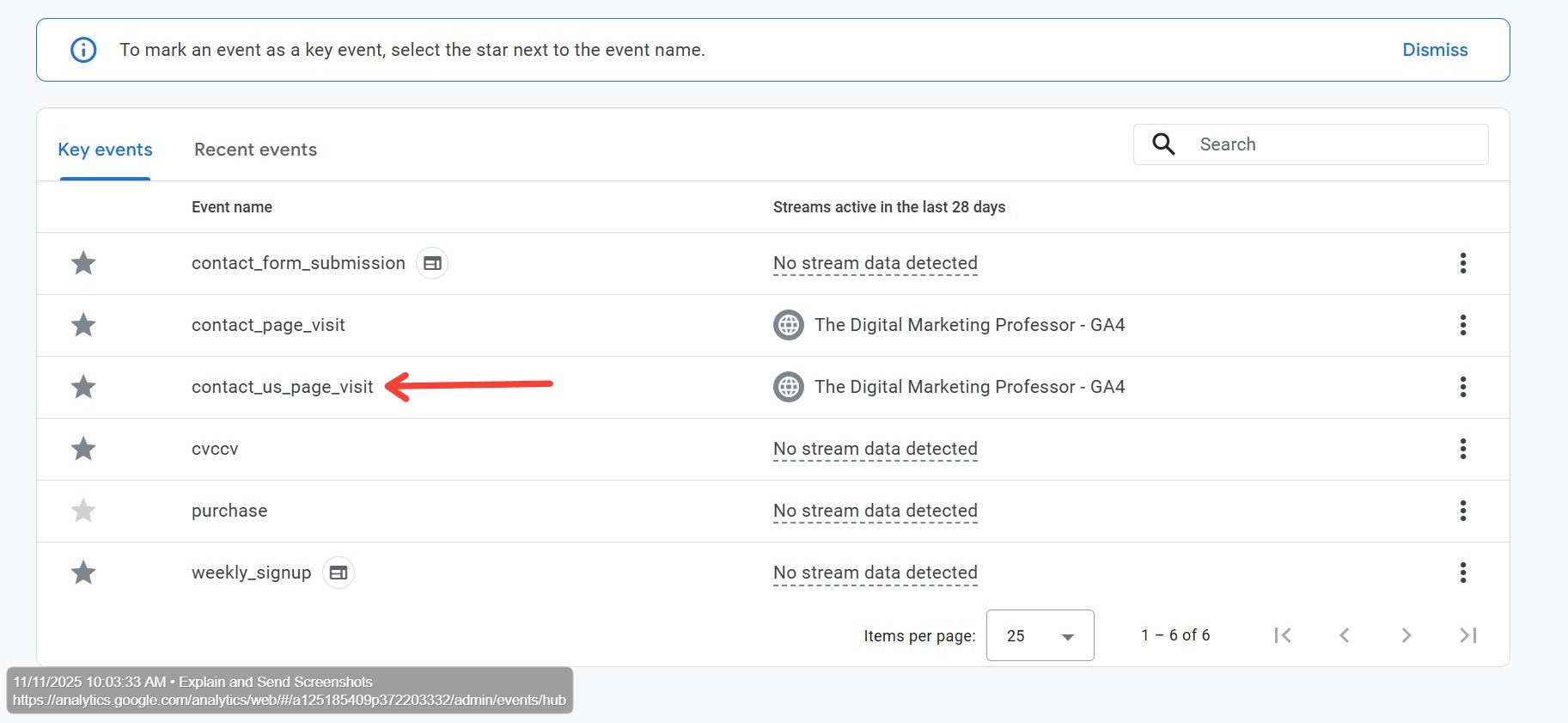
The event is now created and since we marked it as a key event we have a key event also.
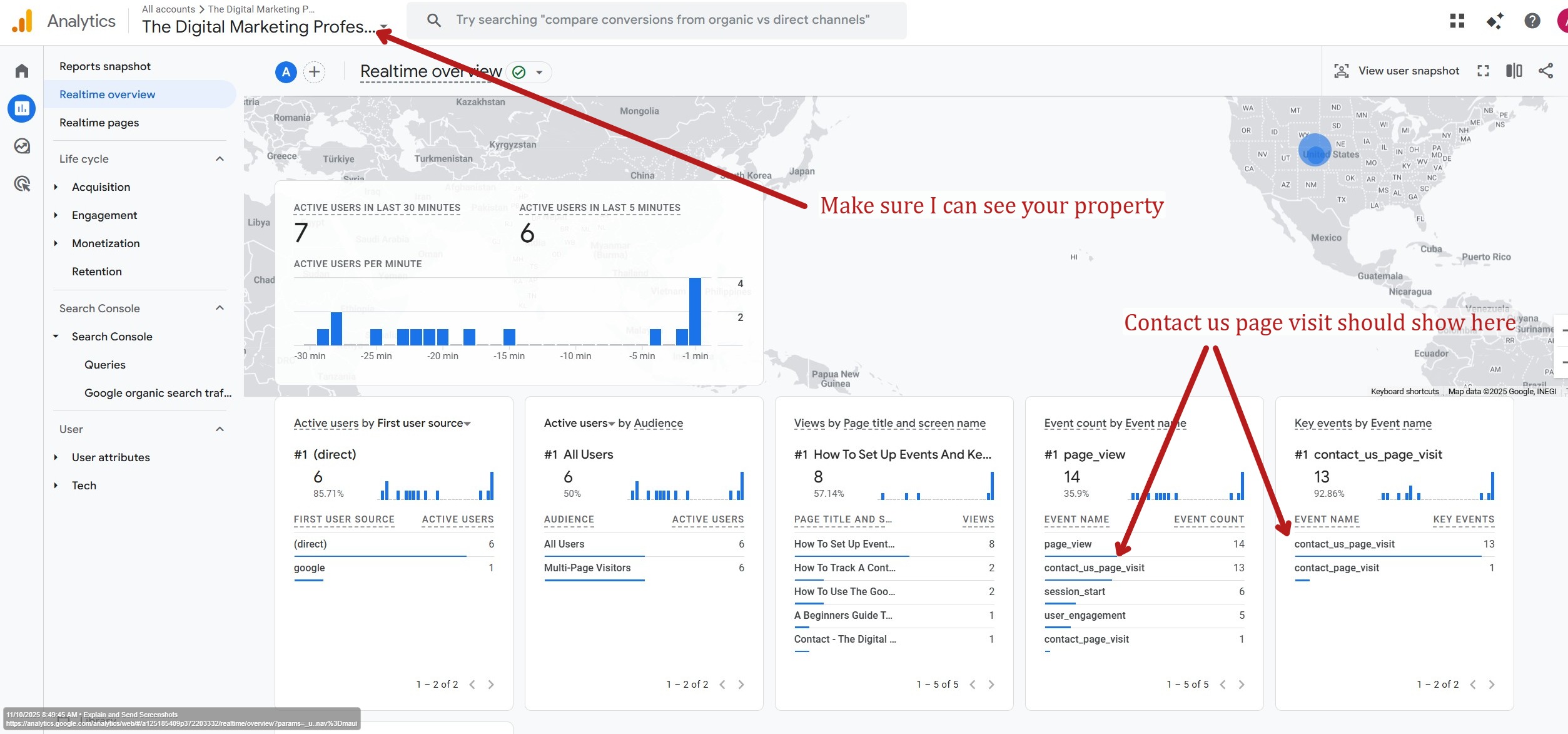
Your Event and Conversion are now set up. To check that it worked navigate back to your reports and check your real time traffic. Then turn off the wifi on your phone and navigate to the contact page of your website where you set up a conversion. You may need to wait 30 to 60 seconds but you should see your configured event and conversion as shown in this screenshot below: