ai

arnold on Apr 21, 2026
If you want to see the real utility of AI in your workflows, you have to look beyond standard chatbots. Enter Google’s NotebookLM.
Instead of pulling from the vast, noisy internet, NotebookLM acts as a localized research assistant grounded entirely in the specific documents, PDFs, and notes you feed it.
To demonstrate how to synthesize raw research into a functional, interactive “Gem,” we are going to build a highly customized dough calculator.
By compiling deep research and specialized notes—specifically the nuances of high-altitude baking and dialing in a Buffalo NY-style crust—we will train a Gem to take your exact elevation, preferred style, baking timeline, and desired yield to generate a precise, foolproof formula.
Getting Started: Setting Up Your Notebook
Let’s get right into it. The first thing you need to do is head over to NotebookLM.
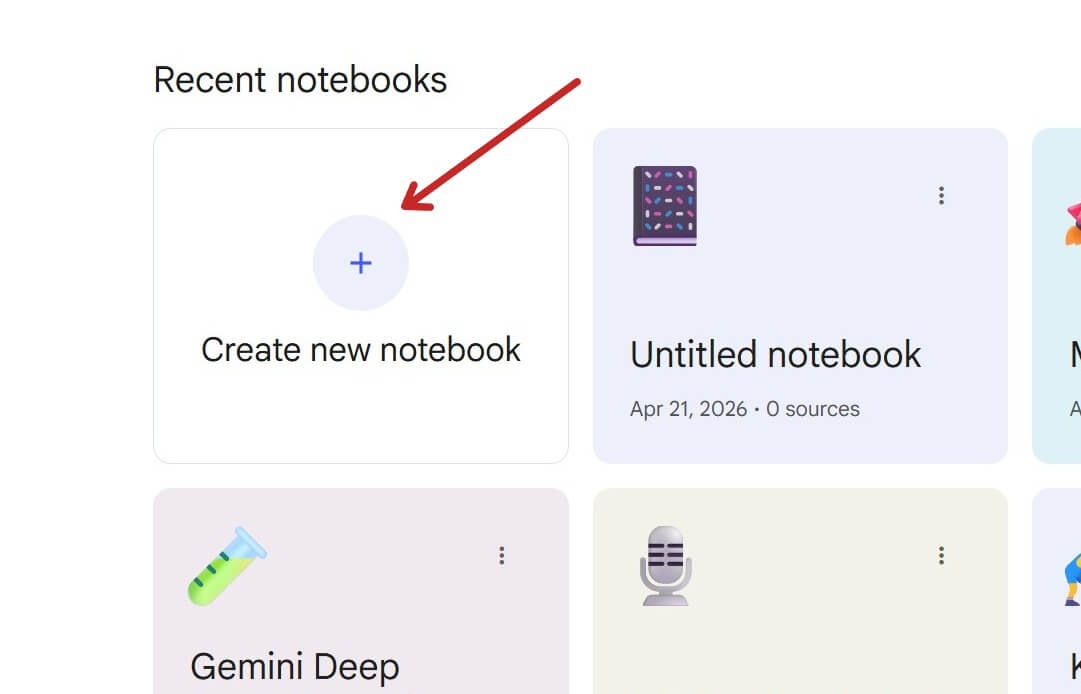
Once you are in, click to create a new notebook.
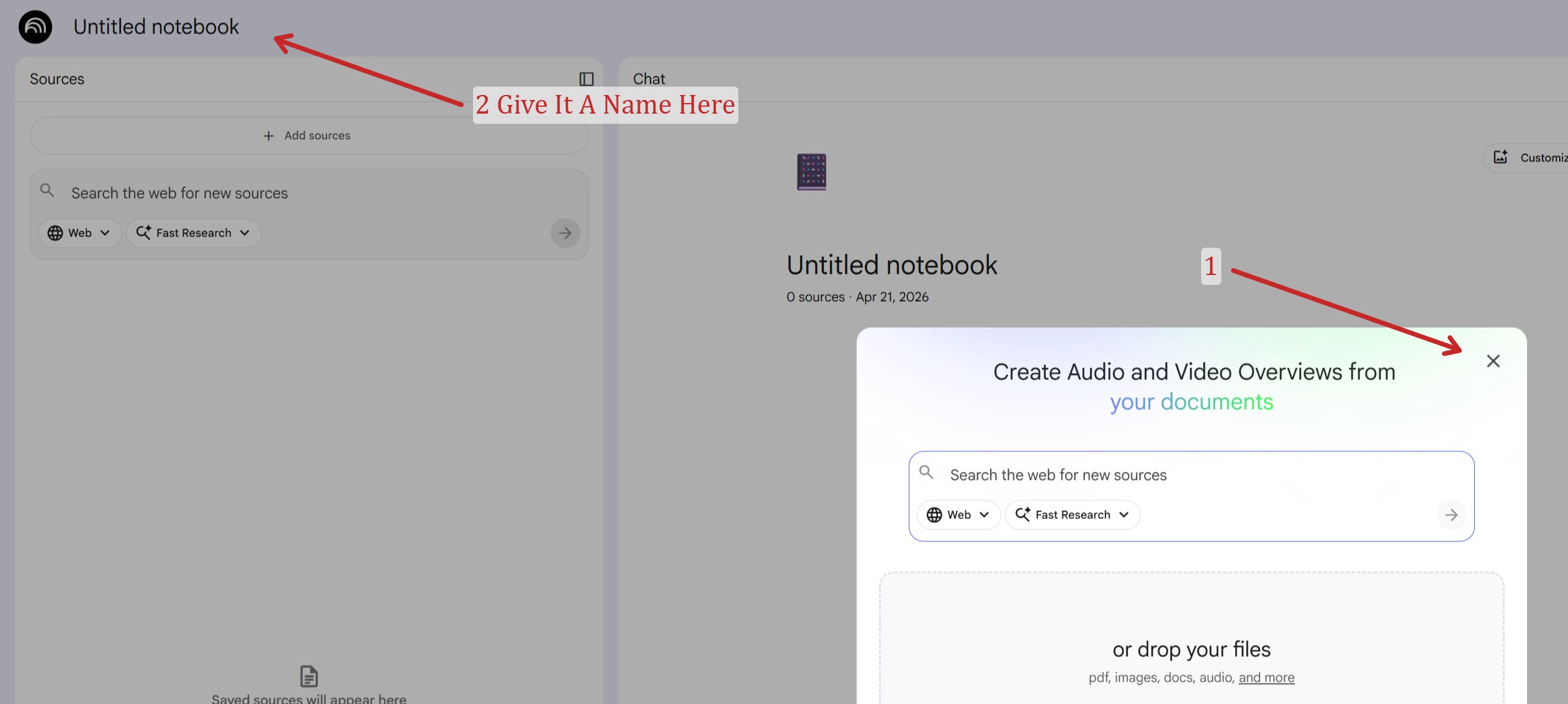
Before you do anything else, you need to name it. Give it a clear, descriptive title—like “High-Altitude Pizza Dough Calculator”—so you know exactly what data this workspace is going to hold.
Adding Your Sources: Curating Your Data
Now that we have the notebook set up, we need to add the sources that will actually power this tool. I’m going to walk you through a few different ways you can bring your information in.
First things first: I ran a Google Gemini Deep Research prompt on a few variables I know are absolutely critical to making a good pizza dough. But here is the key—I deliberately interjected my own opinions and expertise into the research process. I wanted the findings to be framed around the way I believe these topics should be handled.
Once the research was generated, I read through and screened all the data to guarantee its accuracy before uploading it. This is a crucial step. If you just run deep research and blindly dump it in, you are missing the entire point of NotebookLM; you might as well just go type your question into a public LLM. We are trying to build a foundation of our own specific research. That way, any analysis or output the Gem generates comes directly from our curated ideas and standards, rather than a generic aggregation of the entire internet.
Adding Your Sources: The Direct Gemini Import
Since we just talked about generating our deep research and setting our parameters—like dialing in the specific hydration levels needed for baking up here at elevation—let’s look at the easiest way to get that data into our notebook.
If you generated your research using Gemini, you don’t even need to copy and paste. You can push the entire conversation directly into NotebookLM. Here is how:
-
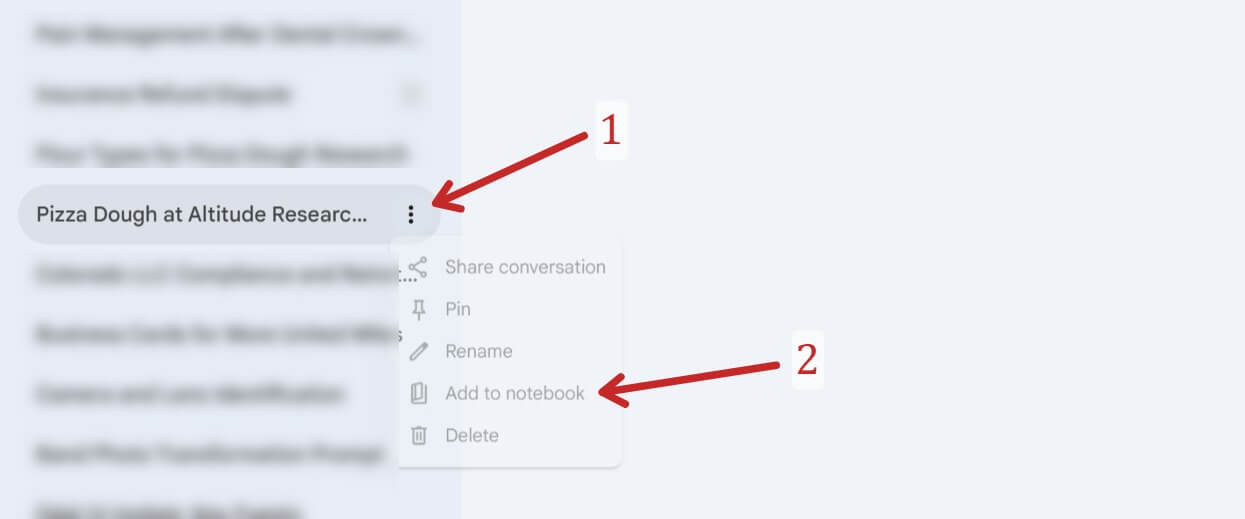
Locate your research: Go to your Gemini sidebar and find the specific conversation where you built your research (in my case, the “Pizza Dough at Altitude Research” chat).
-
Open the menu: Click the three-dot icon right next to the conversation title.
-
Send it over: Simply click “Add to notebook” from the dropdown menu and select the notebook we just created.
This method pulls the entire context of that chat—including all those specific parameters we set for getting a perfect Buffalo-style crust—straight into your source list.
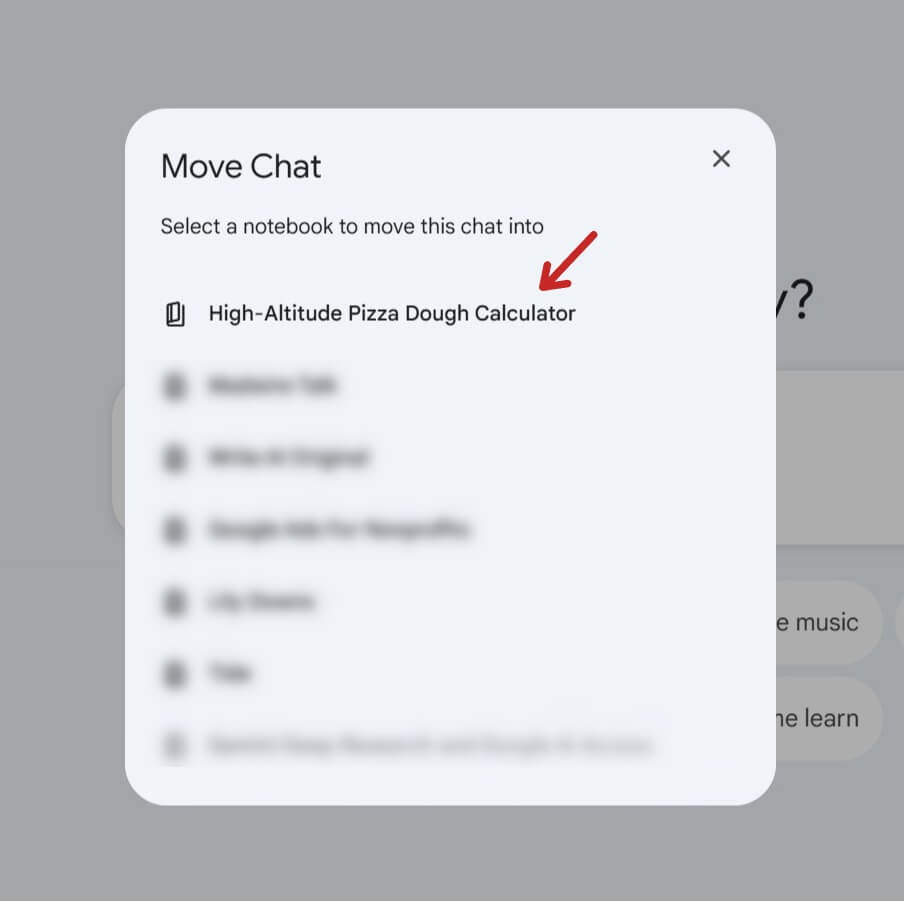
Once you click the Add To Notebook you will be able to choose which notebook to add it to.
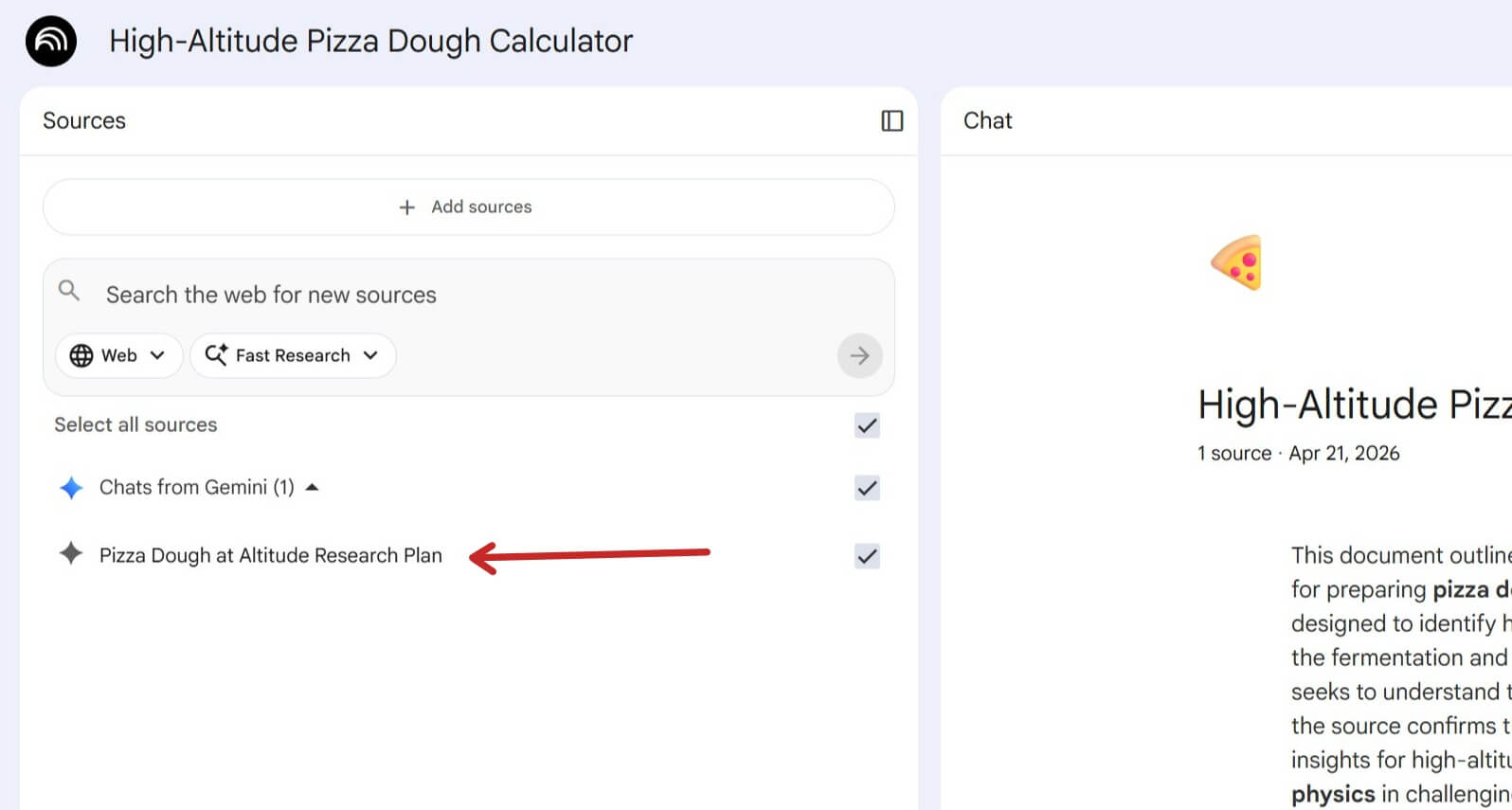
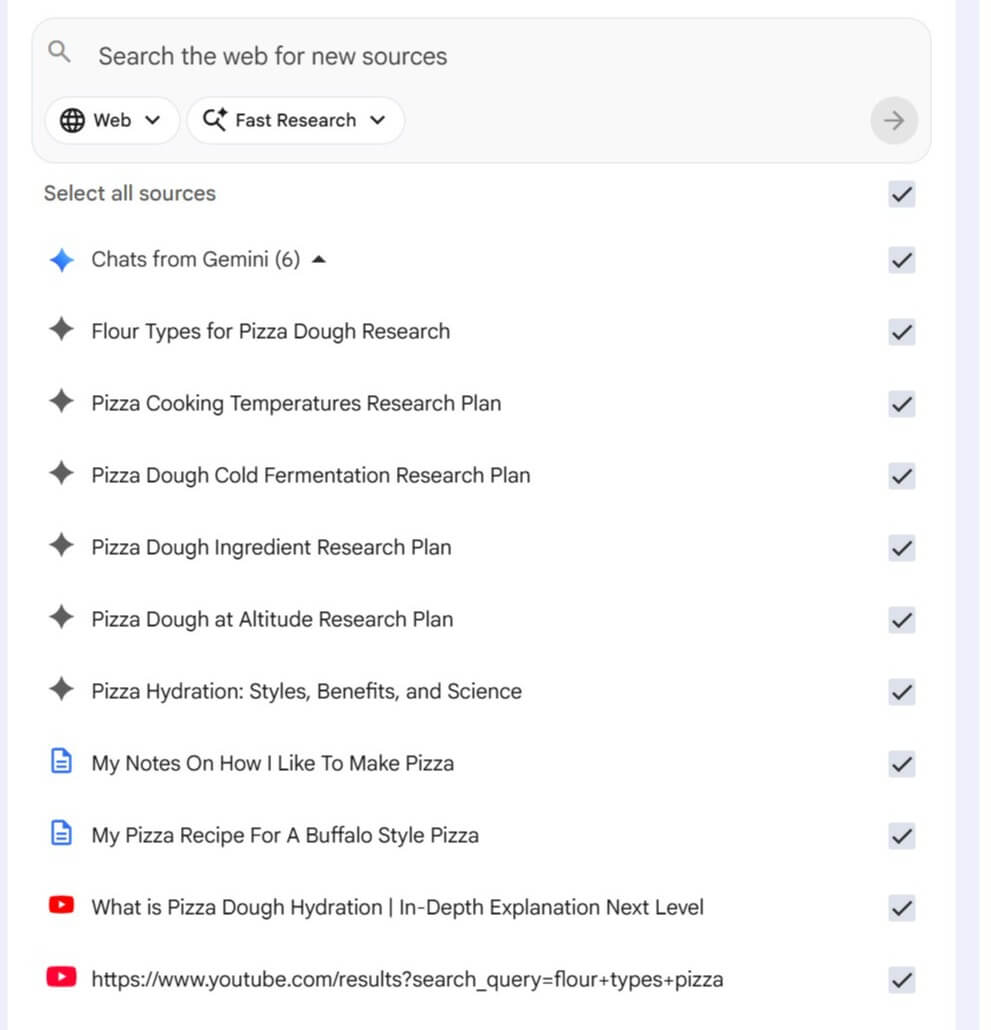
We can now see my Gemini Deep Research in the Notebook.
Feeding the AI: The Science of the Dough
With our initial Gemini conversation linked, I went ahead and imported the rest of my deep research documents directly into NotebookLM. We now have a robust, custom database.
To make this Gem actually useful, it needs to understand the specific variables that dictate a successful bake. We aren’t just giving it generic recipes; we are feeding it the underlying mechanics of pizza dough so it can calculate the right outputs based on user inputs.
Here are the core variables I trained our NotebookLM on:
-
Flour Types and Protein Content: The foundation of the crust. The Gem needs to know when to recommend a high-protein bread flour versus a finely milled 00 flour, depending on the chew and structure desired.
-
Cold Fermentation and Timing: Flavor development takes time. The research covers the science of retarding the yeast activity in the fridge (anywhere from 24 to 72 hours) and the exact window for when to ball up the dough before the final proof.
-
Ingredient Nuances: It’s not just about what goes in, but why. We included data on how fats alter the dough—like the tenderness from olive oil versus the neutral crispness of vegetable oil, or why some styles skip oil entirely. We also covered the difference between using Kosher salt versus regular table salt, especially concerning volume-to-weight conversions.
-
The Altitude Factor: This is critical for us baking here in Fort Collins. The lower atmospheric pressure at elevation means dough rises much faster and dries out quicker. The research includes the micro-calculations needed to adjust hydration levels and scale back yeast to prevent over-proofing.
-
Cooking Temperatures and Styles: Heat dictates the final texture. The Gem is trained on the fact that a thicker, heartier Buffalo NY-style pizza requires a lower, slower bake to cook through without burning, whereas a Neapolitan dough needs to be blasted at 900+ degrees for just 60 seconds.
- The Hydration Equation: By understanding how the precise ratio of water to flour dictates crust texture—from a sturdy Buffalo-style crust to a light, airy crumb—the Gem can accurately calculate the exact water weight needed for your specific pizza request.
By loading these specific parameters into NotebookLM, we are ensuring our Gem acts like a master baker, capable of making intelligent adjustments rather than just spitting out a static recipe.
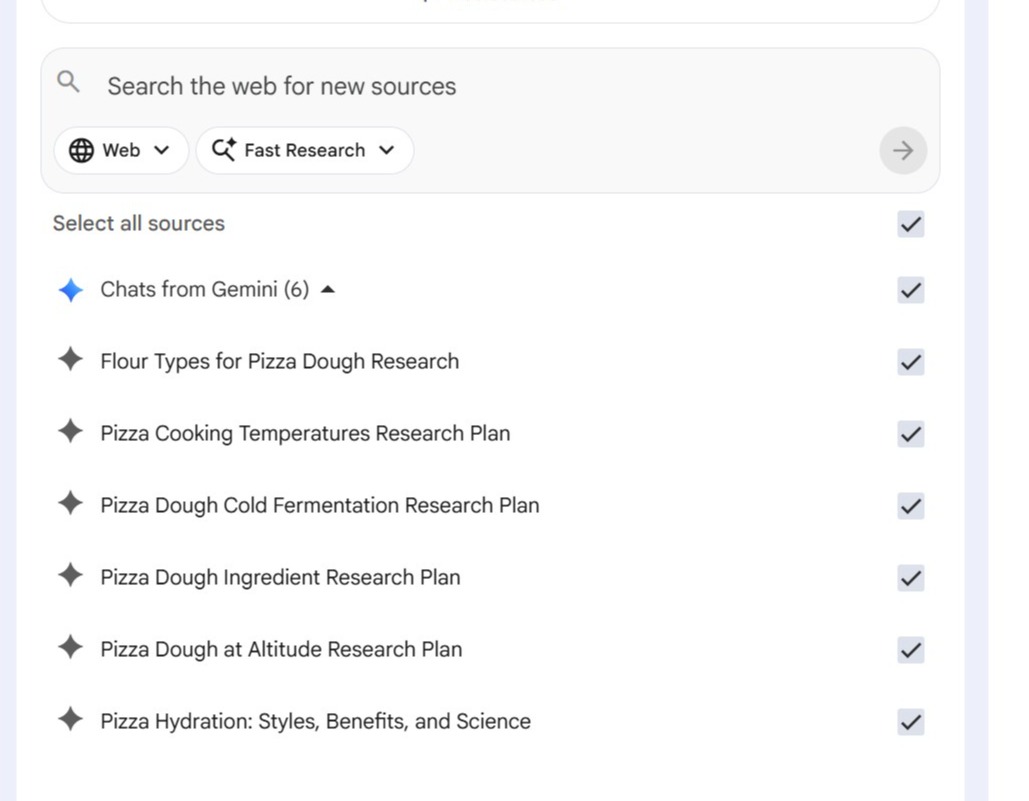
Here’s a look at all of my current six sources in the notebook. After this, I’ll show you two other ways to import content.
Expanding Your Source Library: Text, Videos, and Files
While bringing in deep research directly from Gemini is a massive time-saver, NotebookLM provides several other avenues to build your knowledge base. To make this Gem truly personalized to the exact style of baking we are aiming for, we need to feed it practical, real-world experience.
Here are a few other methods I am using to inject data into our notebook:
-
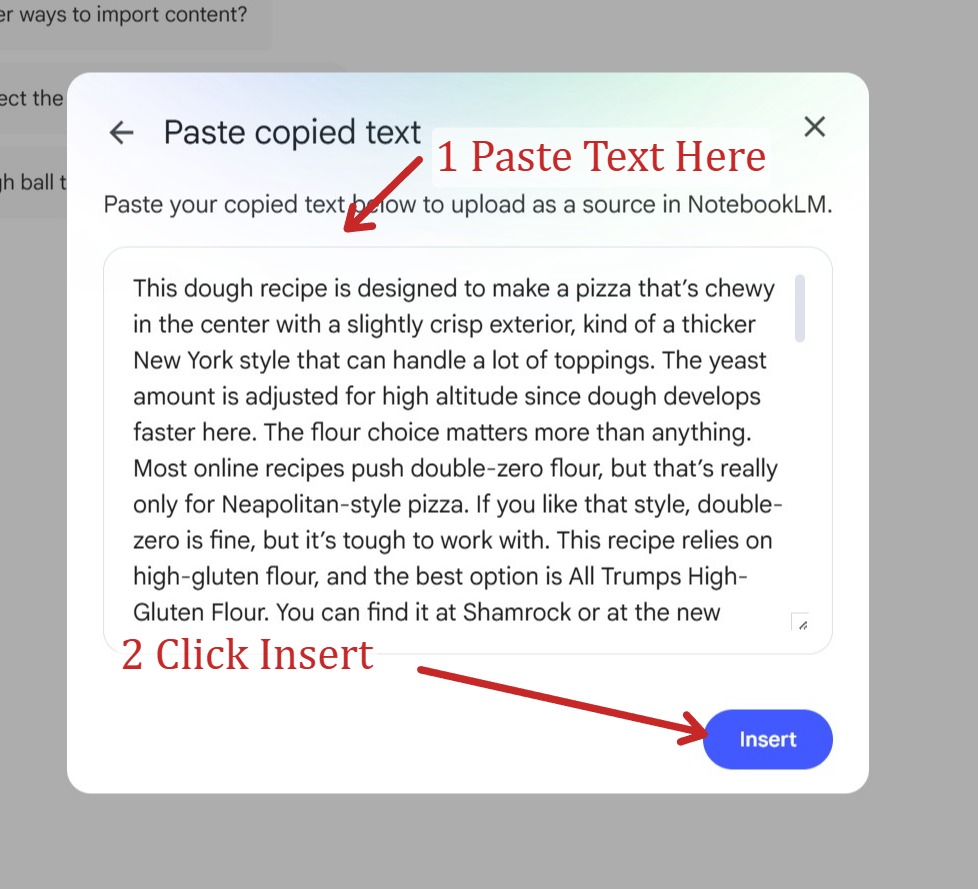
Pasting Direct Text : Sometimes your best data isn’t in a formal whitepaper; it’s in a casual message. I actually have an email I sent recently where I broke down my current dough recipe and step-by-step instructions to help a friend. In the NotebookLM source menu, you can simply click Add Source and then Copied text option as shown below:
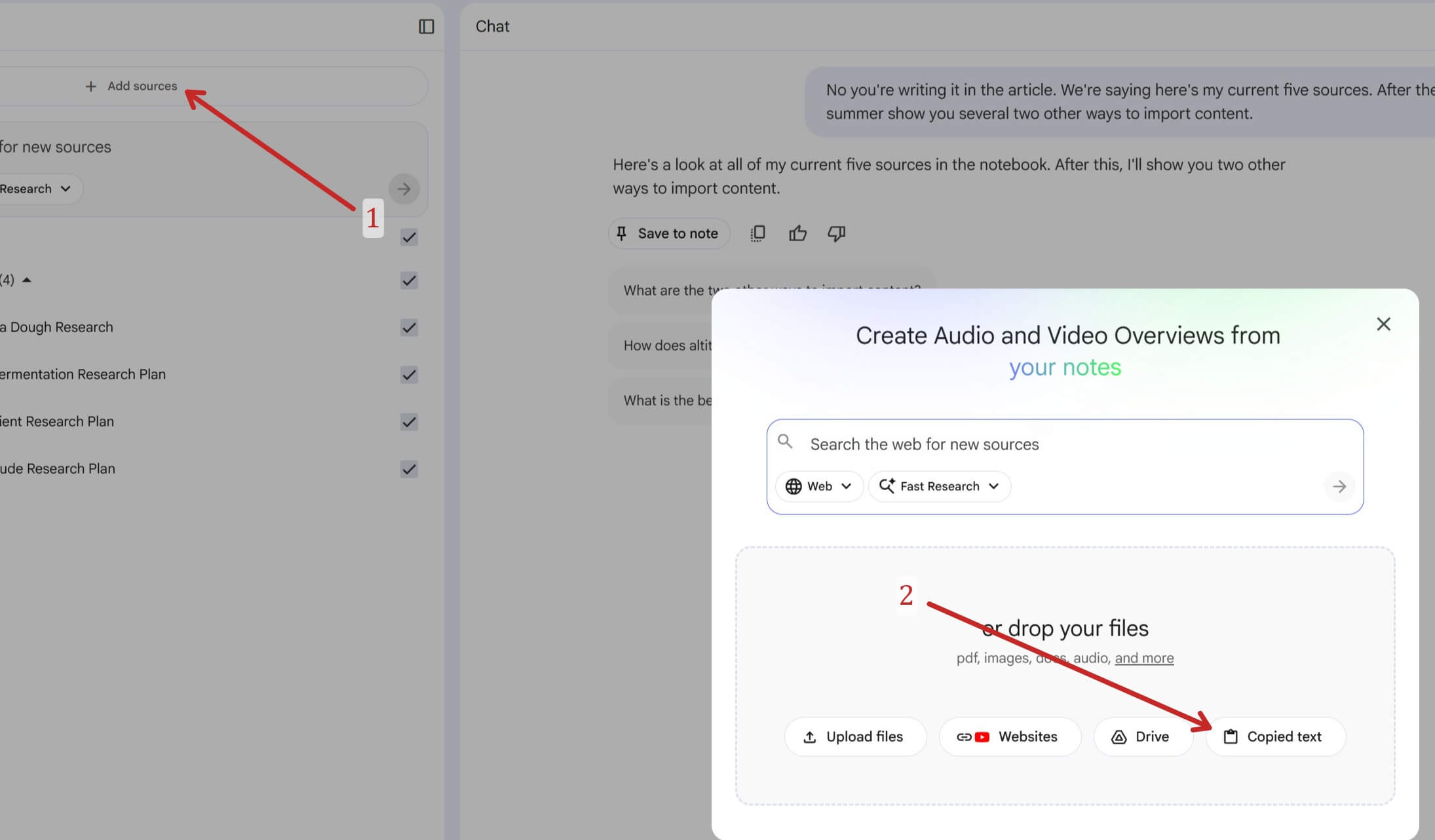
The simply paste the contents of that email (or whatever info you have) directly into the text box. Once you hit insert it will input the text as a document into your sources for your Notebook.
Harnessing Video Data: Importing YouTube Links
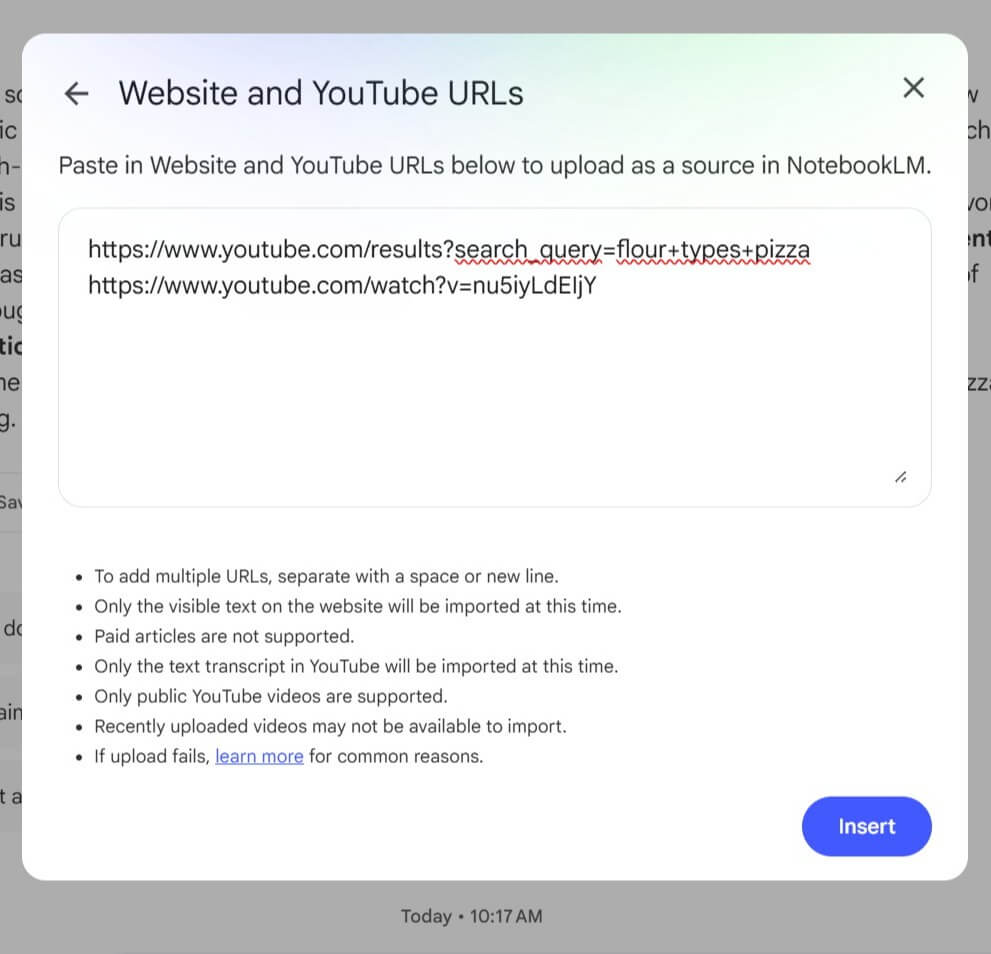
Next, I want to demonstrate exactly how to insert YouTube links into your NotebookLM workspace and explain why this is such a powerful feature. When you add a YouTube link, NotebookLM doesn’t just save the URL as a bookmark. It actually reads and ingests the video’s transcript, converting all that spoken information into searchable, analyzable text data for your notebook.
Here is the exact step-by-step process:
-
Open your Sources panel.
-
Click Add source.
-
Select the YouTube button from the menu options.
-
Paste the URL of the video you want to use.
-
Click Insert.
For our dough calculator, I found two specific videos that do a phenomenal job explaining hydration percentages and flour types. More importantly, I completely agree with the methodology they teach. I copied both of those links, pasted them in, and hit Insert.
Just like that, all the technical expertise from those videos is permanently saved and synthesized into our notebook’s database, ready to inform the calculations our final Gem will make.
The Final Source: Your Personal Methodology
The final source I added to our database was essentially a direct brain dump. I simply spoke into a microphone and recorded a detailed walkthrough of my entire personal process for making dough, explaining exactly why I use certain techniques over others. This step is critical because I want the Gem’s final instructions to be completely personalized to the way I believe pizza should be made. We aren’t here to generate generic, run-of-the-mill recipes that anyone can find on a standard cooking blog. By feeding the system my own spoken methodology, we ensure the final output reflects our strict standards and preferences.
That wraps up our source gathering for now. Next, we are going to explore some of the fun, interactive features inside NotebookLM to start playing with this data, and then I will show you exactly how to package all this curated knowledge into a fully functional custom Gem.
Playing in the Studio: Turning Research into Content
Now that we have all of our sources locked in—our deep research, the YouTube videos, and my personal methodology—it’s time to look at some of the really fun stuff you can do before we even touch the final Gem.
Over on the right side of your NotebookLM screen, you are going to see the Studio panel. This is where NotebookLM acts less like a chatbot and more like an automated production assistant. With a single click, it can synthesize all the complex pizza dough mechanics we just uploaded and turn them into completely different formats.
Here is a breakdown of what each of these Studio tools can do with our dough data.
The Mind Map
If you are a visual learner, the Mind Map is incredible.
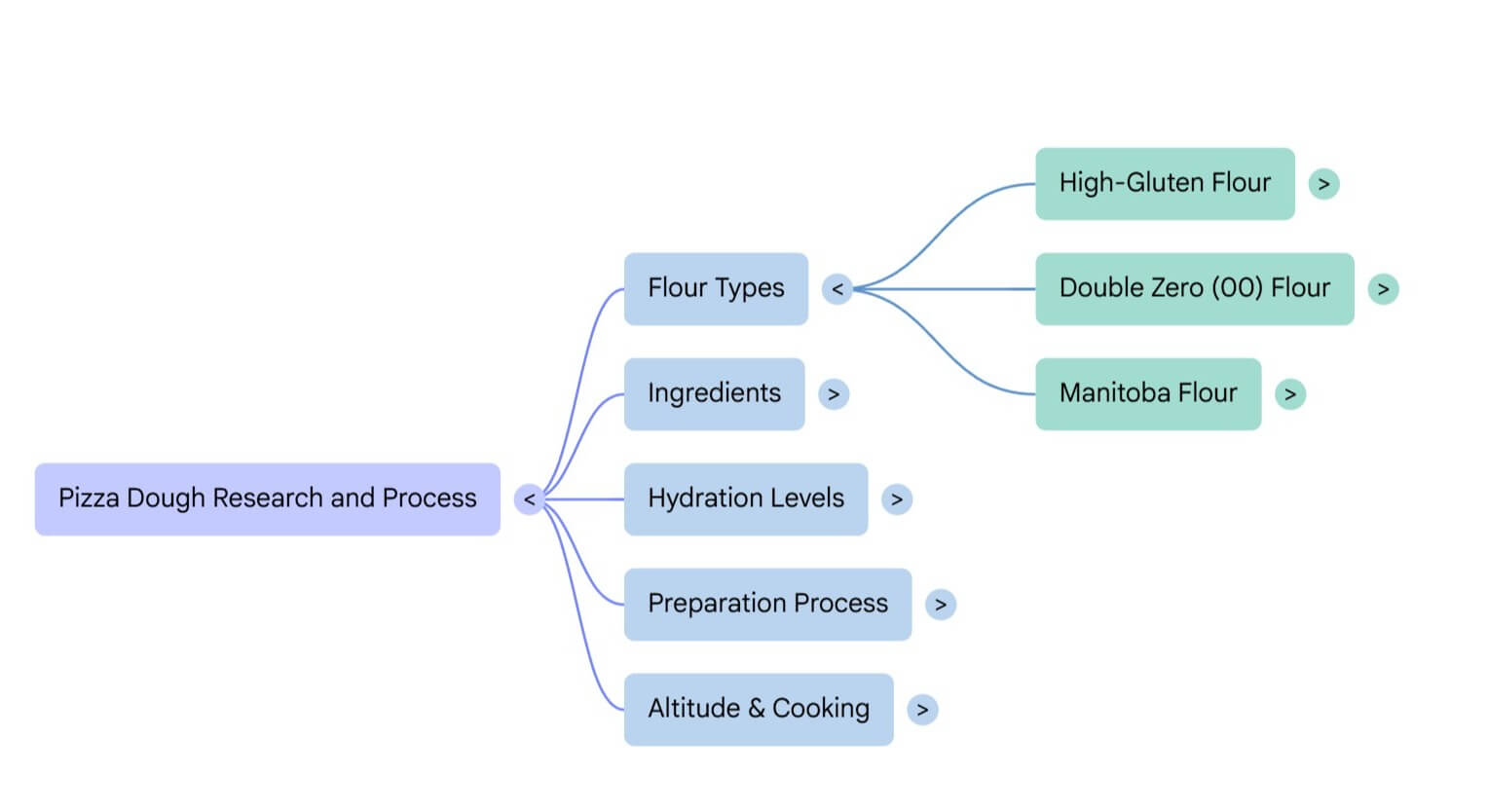
This screenshot shows the Mind Map that the NotebookLM Studio automatically generated from our combined sources. Look at the central node: Pizza Dough Research and Process. You can see how cleanly the AI has already structured the messy, multidimensional data we fed it. It took all that deep research and my personal notes and categorized them into five key branches:
-
Flour Types
-
Ingredients
-
Hydration Levels
-
Preparation Process
-
Altitude & Cooking
Notice that the Flour Types branch is already expanded. The AI correctly prioritized the detailed technical research we imported, specifically mapping out High-Gluten Flour, Double Zero (00) Flour, and Manitoba Flour. This visual hierarchy is proof that NotebookLM has processed the core concepts and is ready for the final step: building our intelligent Gem.
The Briefing Doc (Report)
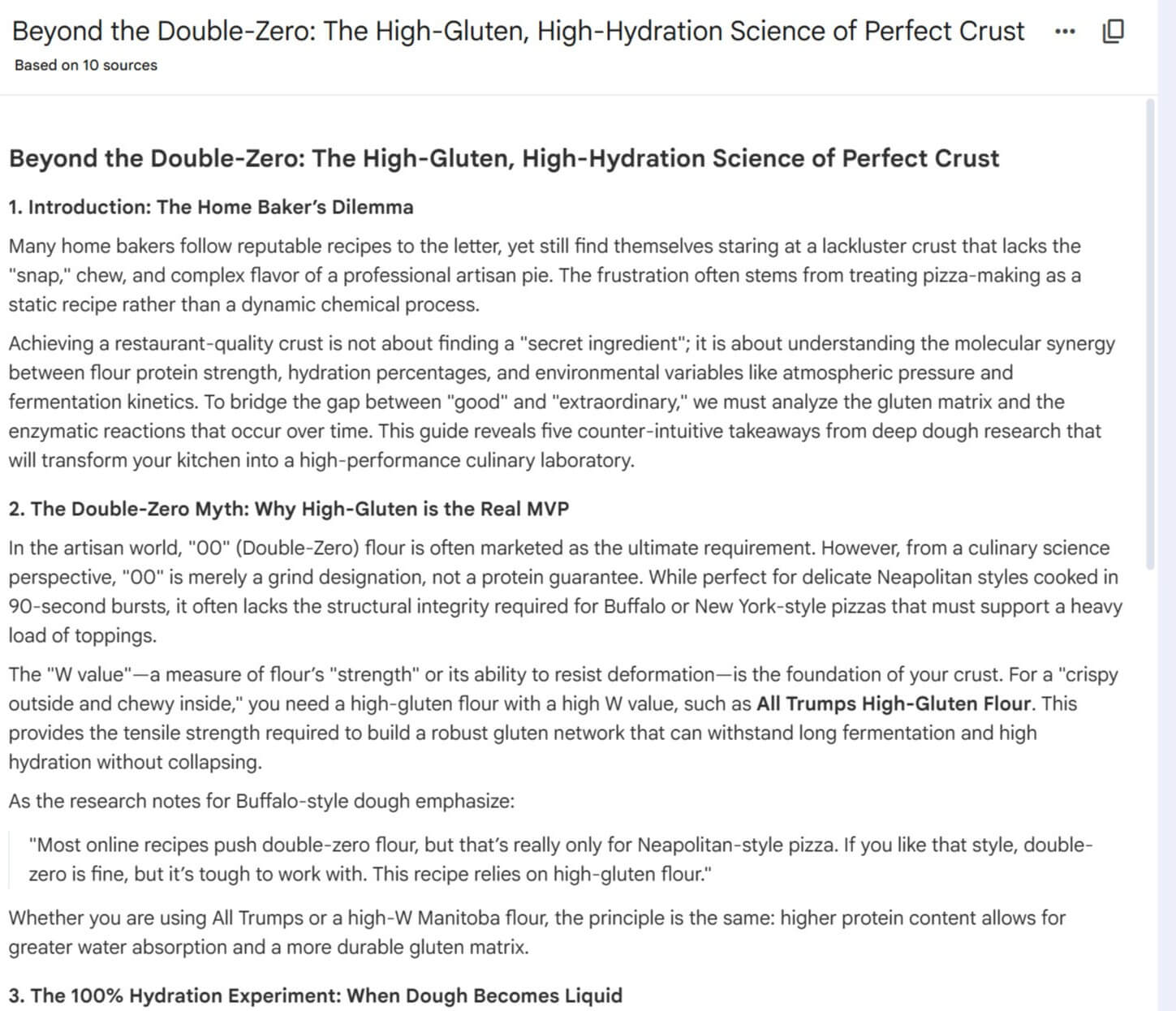
If you need a clean, executive summary of your research, the Briefing Doc (or Report) tool does the heavy lifting. It automatically extracts the core themes across all of our disparate sources—like the email I pasted in, combined with the YouTube transcripts—and structures them into a clear, hierarchical outline. It is perfect if you want a top-down view of our pizza dough parameters without doing any manual outlining.
Here is a screenshot of the beginning of the blog post it created:
The Infographic
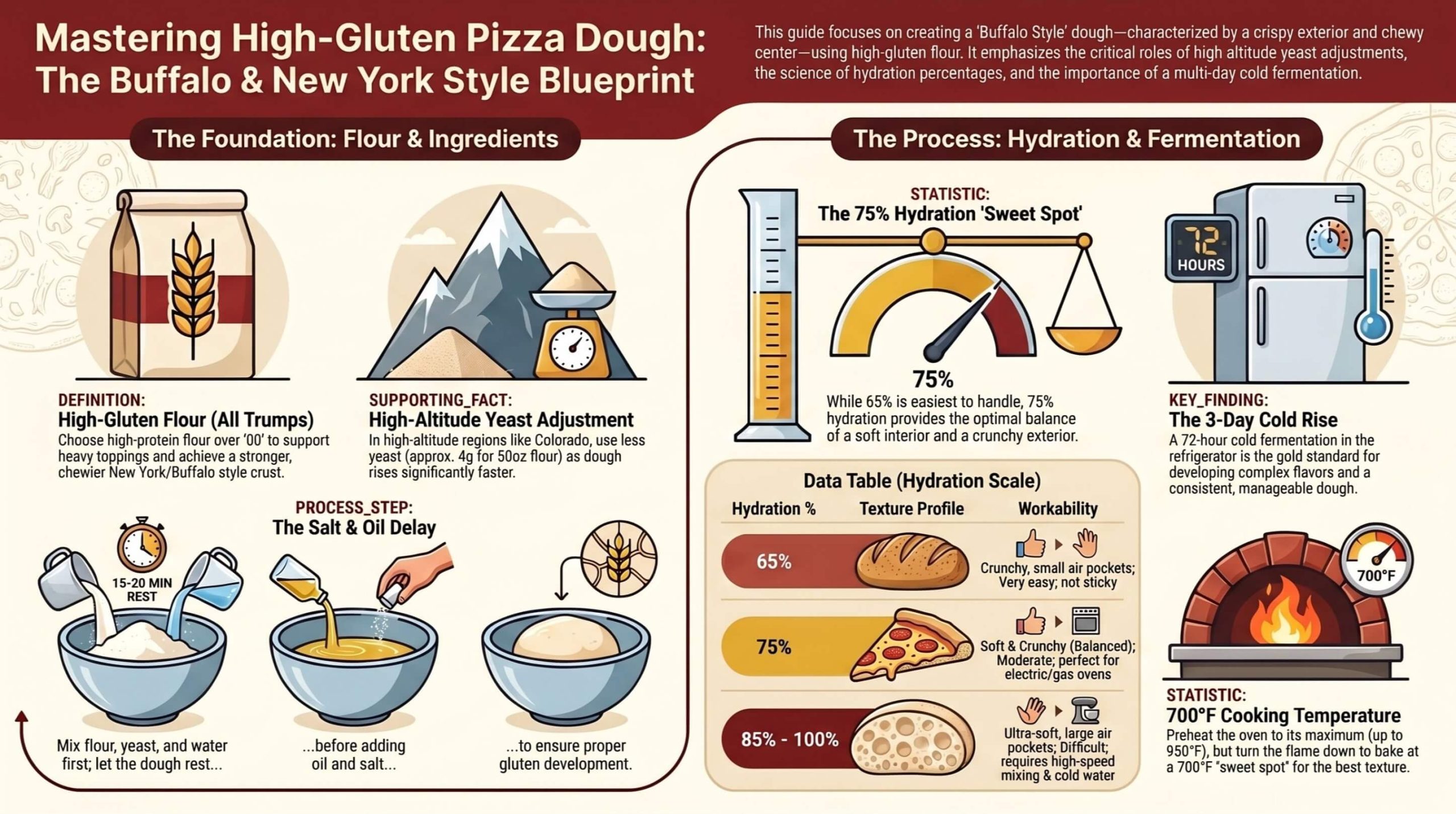
Sometimes you need to visualize the data fast. When I clicked the Infographic tool, NotebookLM generated this incredible visual cheat sheet: “Mastering High-Gluten Pizza Dough: The Buffalo & New York Style Blueprint.” Instead of digging through PDFs, I now have a clean graphic comparing hydration percentages (65% to 85%+) and the resulting texture profiles.
Most importantly, it visually synthesizes our critical data, like the precise Fort Collins high-altitude yeast adjustment (4g for 50oz flour), the necessary salt and oil delay process, and the specific 700°F temperature sweet spot for the best bake.
It’s an instant, professional visual summary of our entire knowledge base.
The Slide Deck
This is a massive time-saver for anyone presenting data. By clicking Slide Deck, NotebookLM takes our raw research and outputs a fully structured presentation complete with title slides, key bullet points on baking temperatures, and supporting details. As of recent updates, you can even export these directly to PowerPoint (PPTX) or revise specific slides right in the panel if the AI missed a detail on olive oil fats.
Here is the slide deck that NotebookLM put together:
The Video Overview
Taking it a step further, the Cinematic Video Overview generates an immersive, animated video summary of our content. The Gemini models behind it make structural decisions to best tell the story of our sources, complete with fluid animations and a generated voiceover. It is shockingly useful if you need to asynchronously share this methodology with someone who doesn’t want to read the research.
The Audio Overview
This feature is wild. The Audio Overview turns our dry, technical documents into a highly realistic, two-person AI podcast. The hosts will literally banter, make jokes, and summarize our dough methodology like they are hosting a food science radio show. You can even use the interactive mode to interrupt them and ask a specific question about high-altitude baking, and they will answer it using our sources before jumping back into the conversation.
Bringing It All Together: Building the Custom Gem
Now for the grand finale. We have our verified, high-altitude dough research perfectly structured in NotebookLM. It is time to take that data and turn it into an interactive, functional calculator.
Here is the exact step-by-step process to build your custom Gem:
Navigate to Gemini: Open up your main Gemini interface.
Access Your Gems: On the left-hand sidebar, locate and click on the Gems icon.
Start Building: Click the Create a Gem button to open the builder interface.
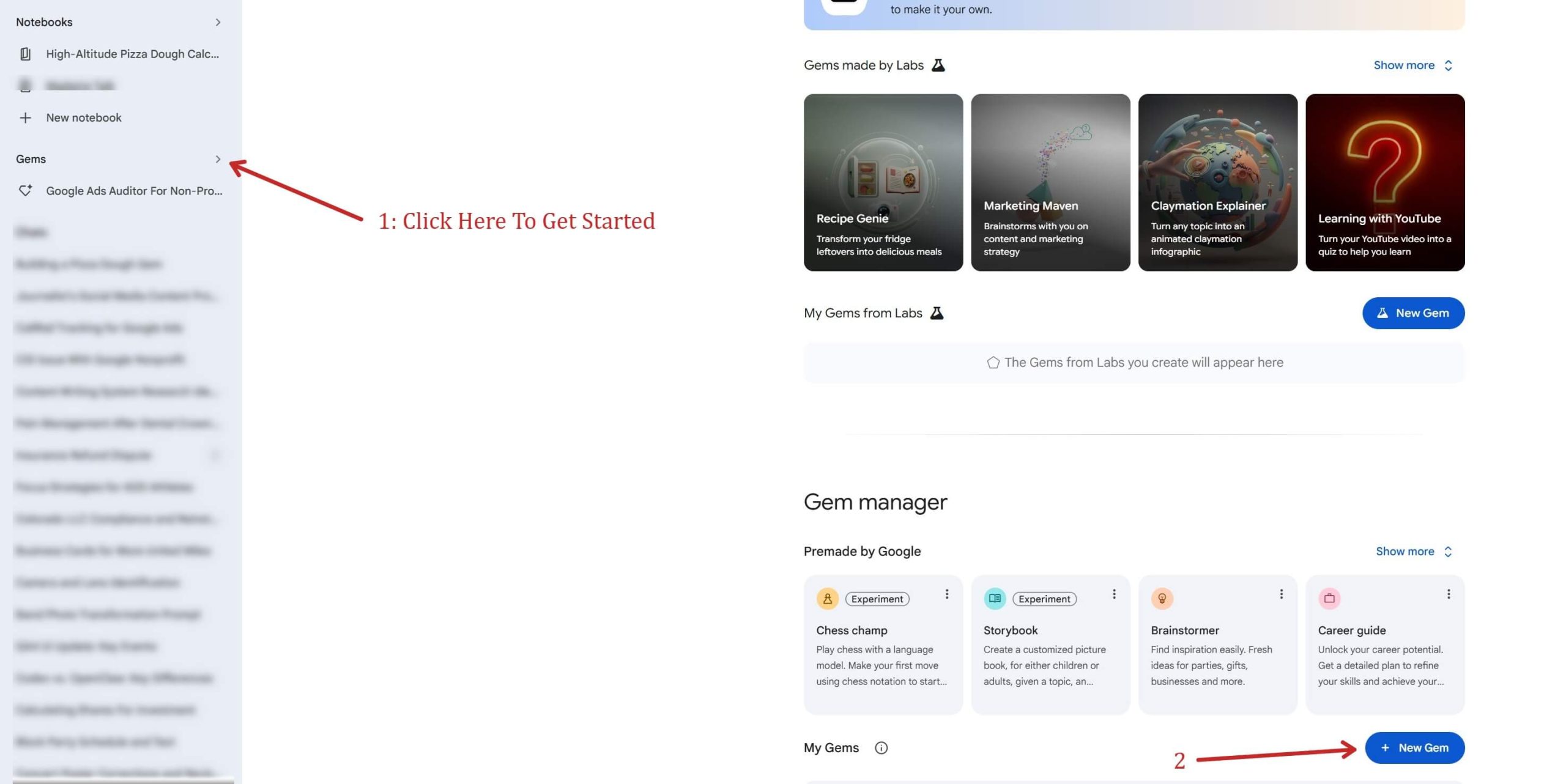
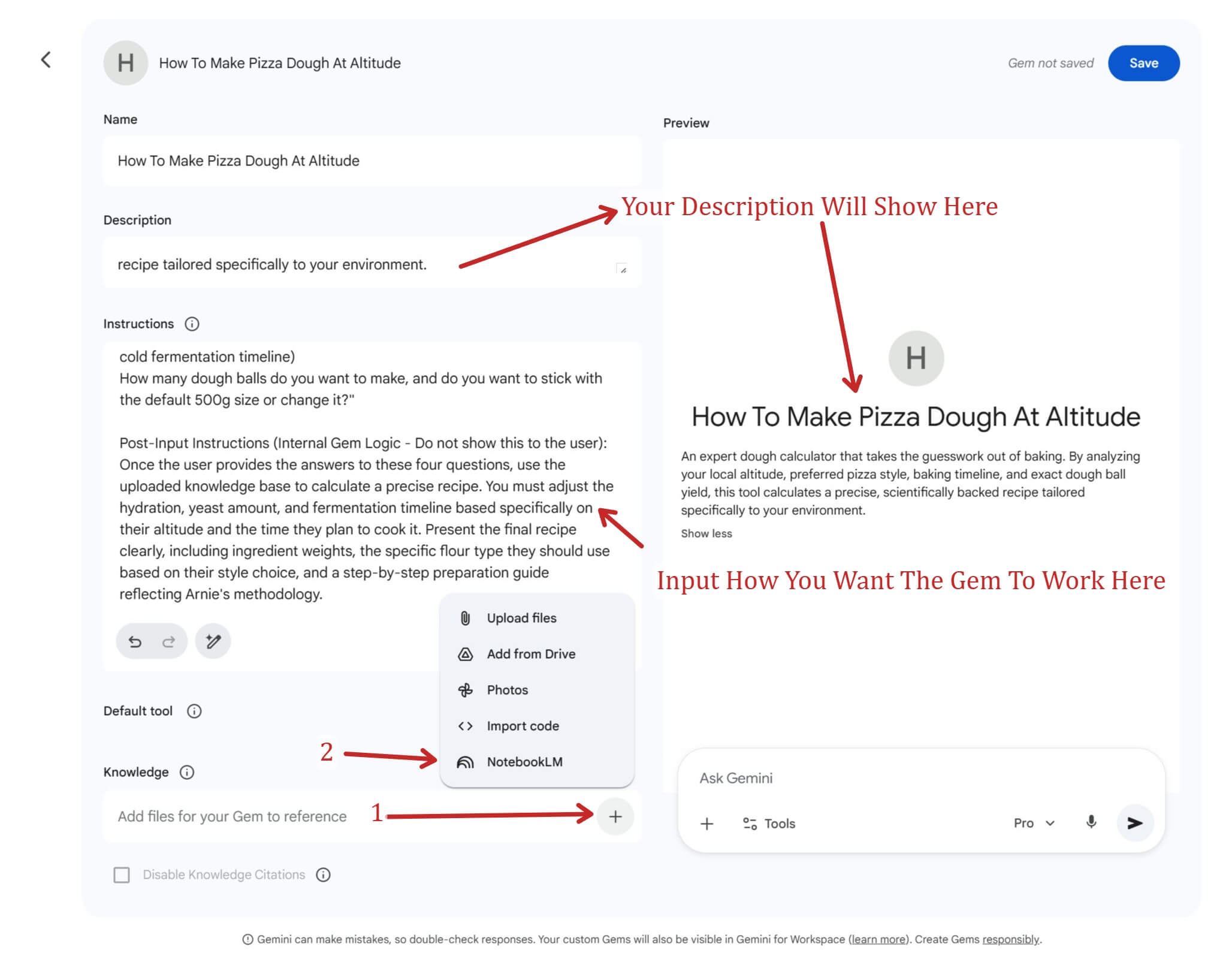
Name and Describe: Give your Gem a clear title—something like “The Altitude Dough Calculator”—and a brief description so your users know exactly what the tool does.
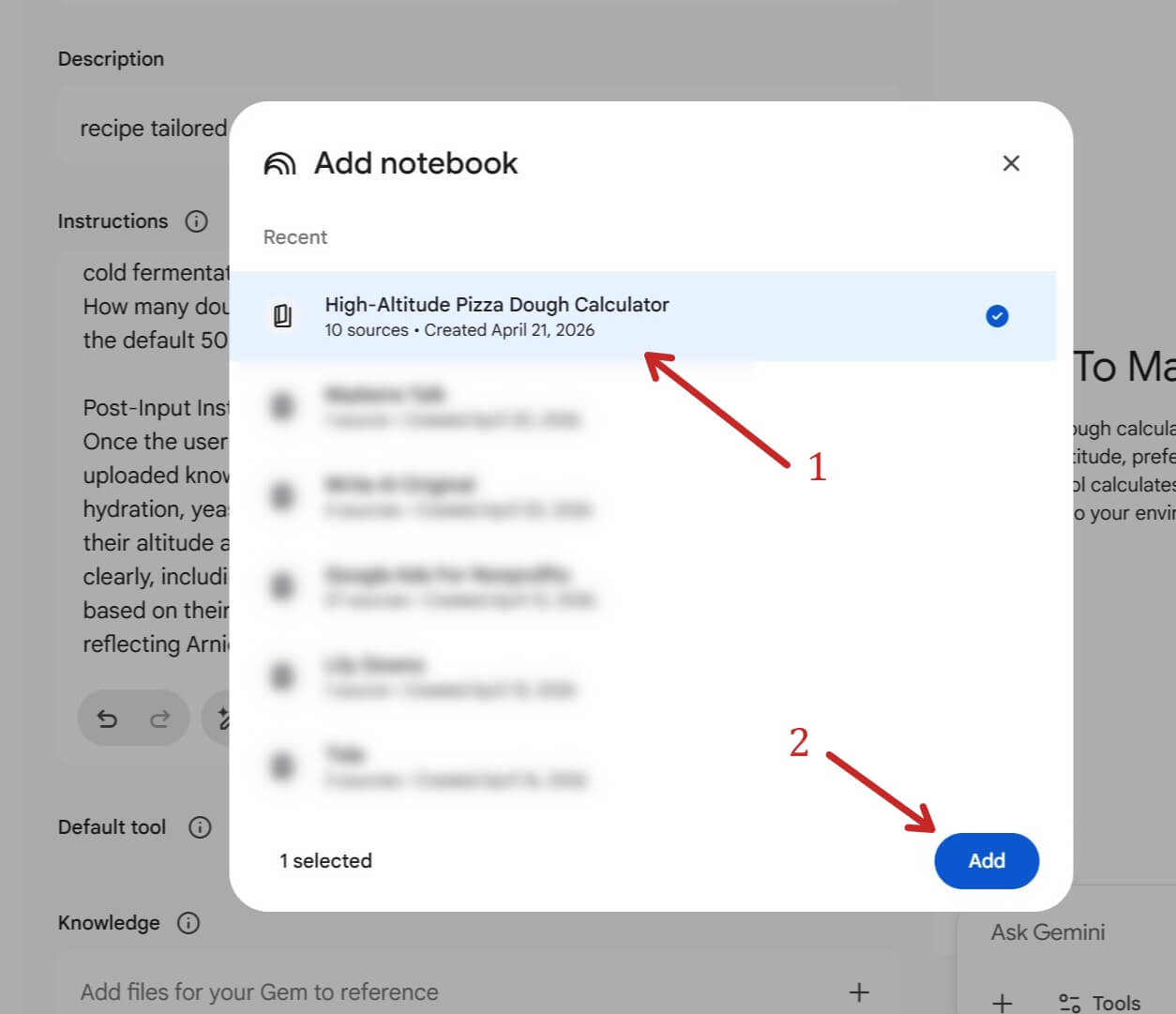
Add Your Curated Knowledge: This is where all our NotebookLM prep work pays off. In the Gem builder, you will see a knowledge section to upload files for the Gem’s “Knowledge.” Instead of Uploading a Doc we will use the Notebook we curated earlier. This strict parameter setting is what prevents the Gem from giving generic internet answers.
Crafting Your Gem Instructions: The Formula
Writing the instructions for your Gem is where the real magic happens. You aren’t just giving it a basic prompt; you are programming a specific workflow. If you look closely at the instructions we just built for the dough calculator, you will notice a very deliberate structure.
When you are building your own Gems for this project, you need to include these core elements:
-
The Trigger (What happens when it starts): I explicitly told the Gem exactly how to greet the user and what to do the moment the chat initiates. Instead of waiting for the user to guess what to type, the Gem takes control of the conversation and asks the four required questions right away.
-
The Rules & Defaults (How to calculate): AI needs parameters. I told it exactly what our default baseline is (a 500g dough ball) but gave it the logical rule to adjust if the user specifically requests a different size, like a 12 oz ball.
-
The Output Command (What you want it to deliver): I didn’t just ask for a “recipe.” I instructed the Gem to take the user’s specific answers, cross-reference them with the NotebookLM knowledge base, and output a highly specific deliverable: adjusting the hydration, yeast, and timeline based on their inputs.
The Golden Rule of Building Gems: Iterate and Test
Here is the reality—you are rarely going to get your Gem to act perfectly on the very first try. Prompt engineering is a process.
Once you put your instructions in, you need to open up the preview chat on the right side of the screen and test it. Act like a user. Give it a high altitude, ask for a Neapolitan style, and see if it actually scales back the yeast and adjusts the water correctly based on our data. If it hallucinates or gives you a generic internet recipe, you need to go back to your instructions, tighten up your wording, and test it again. It might take several iterations of tweaking the instructions before the Gem reliably works exactly the way you envisioned.
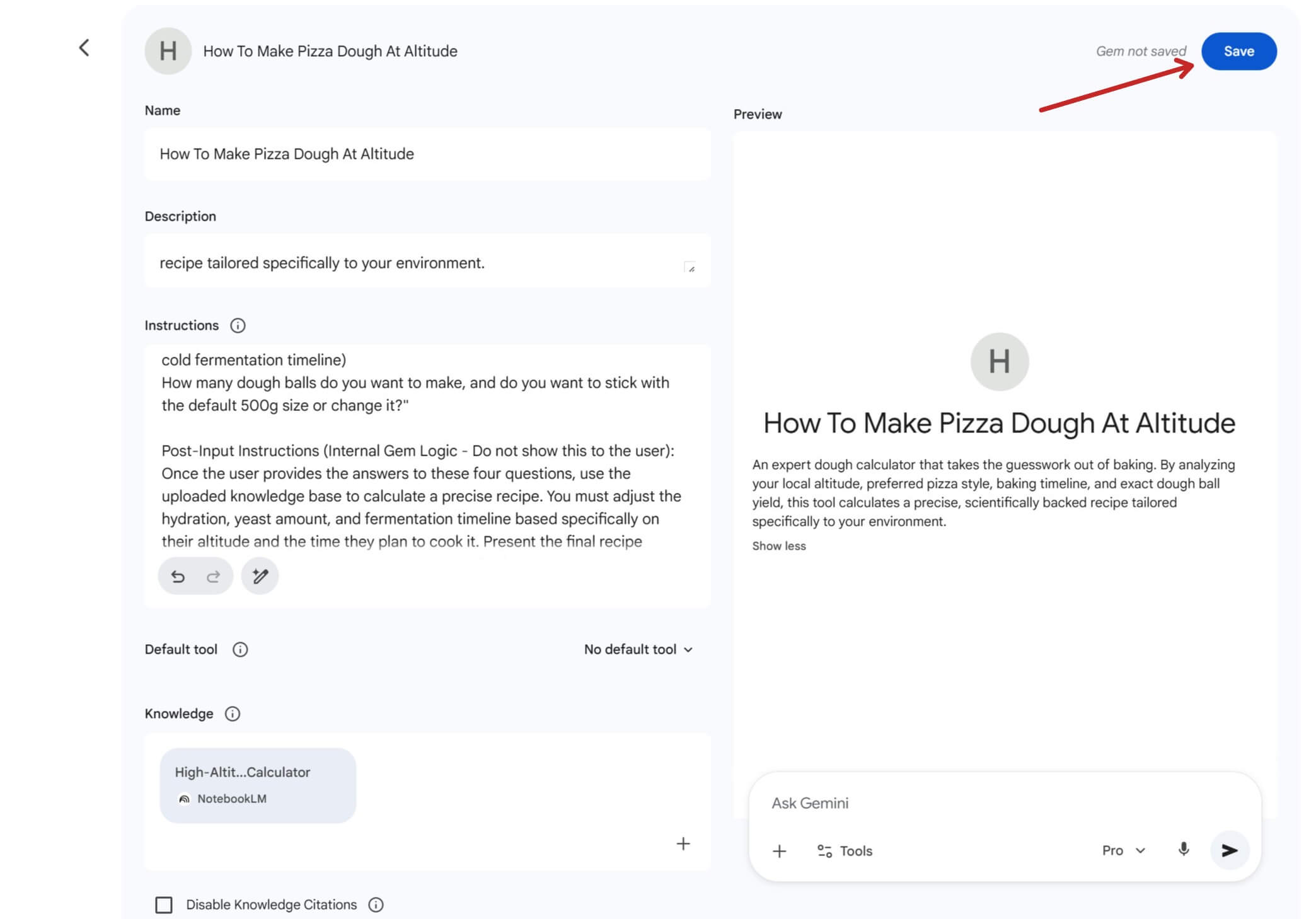
Once you get your instructions and everything else set up make sure you hit the Save button.
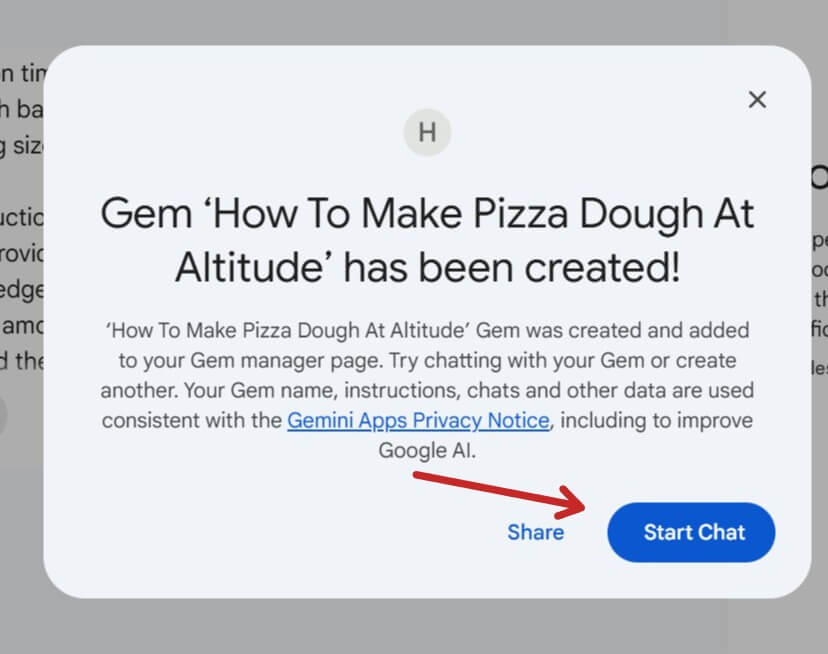
You should see a box pop up similar to this. Click Start Chat to test out your Gem.
The Final Test: Putting the Gem to Work
After dialing in the instructions, it is time for the most important step: testing the output to make sure the Gem is actually referencing our curated data and not just pulling a generic recipe from the internet.
In the preview window, I dropped a simple “Hi” to kick things off. Right on cue, the Gem executed the exact greeting we programmed and fired off the four required questions.
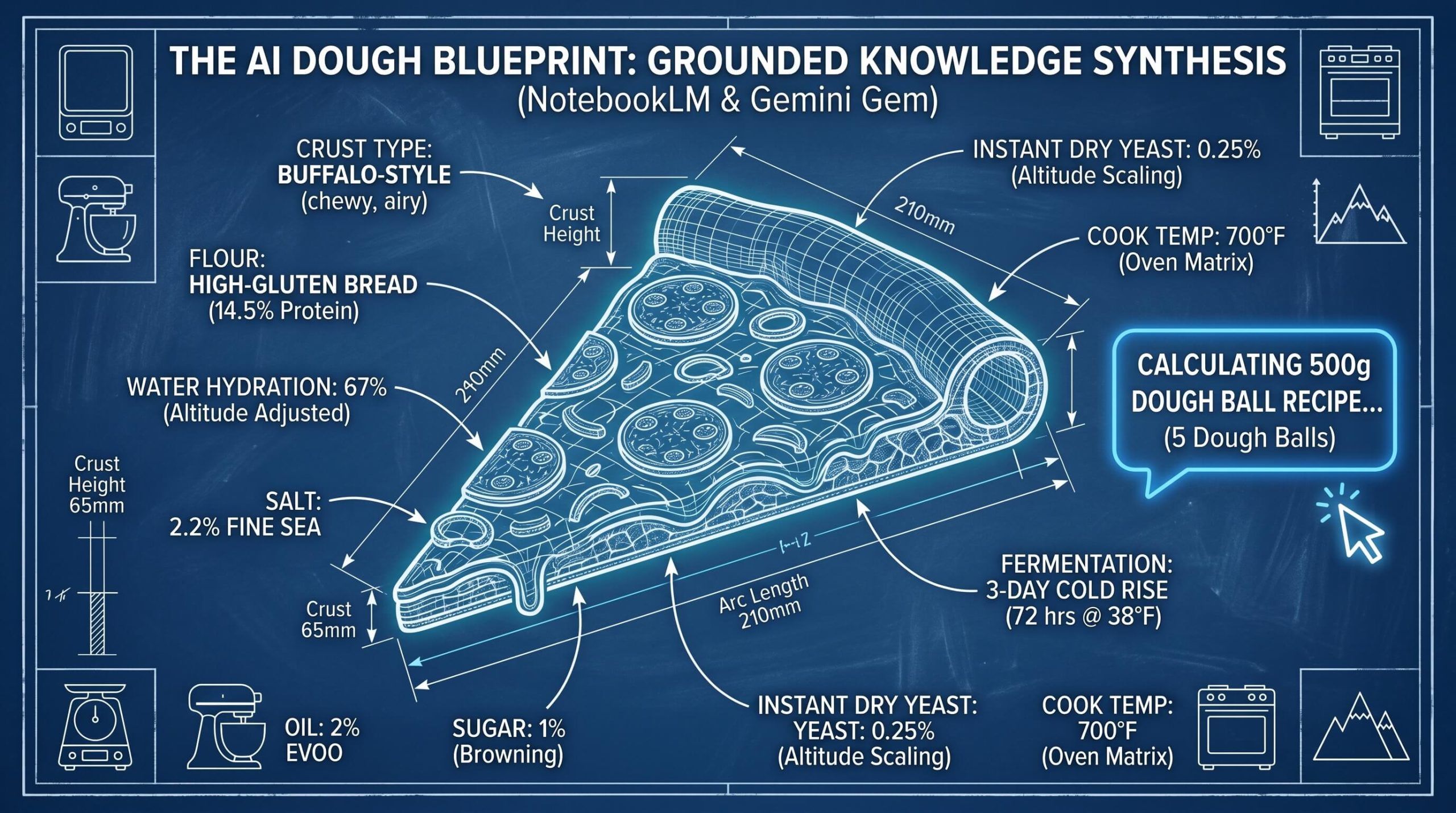
For the test, I fed it a real-world scenario tailored to our local environment: 5,000ft elevation, Buffalo style, a 3-day cold ferment, and 5 dough balls.
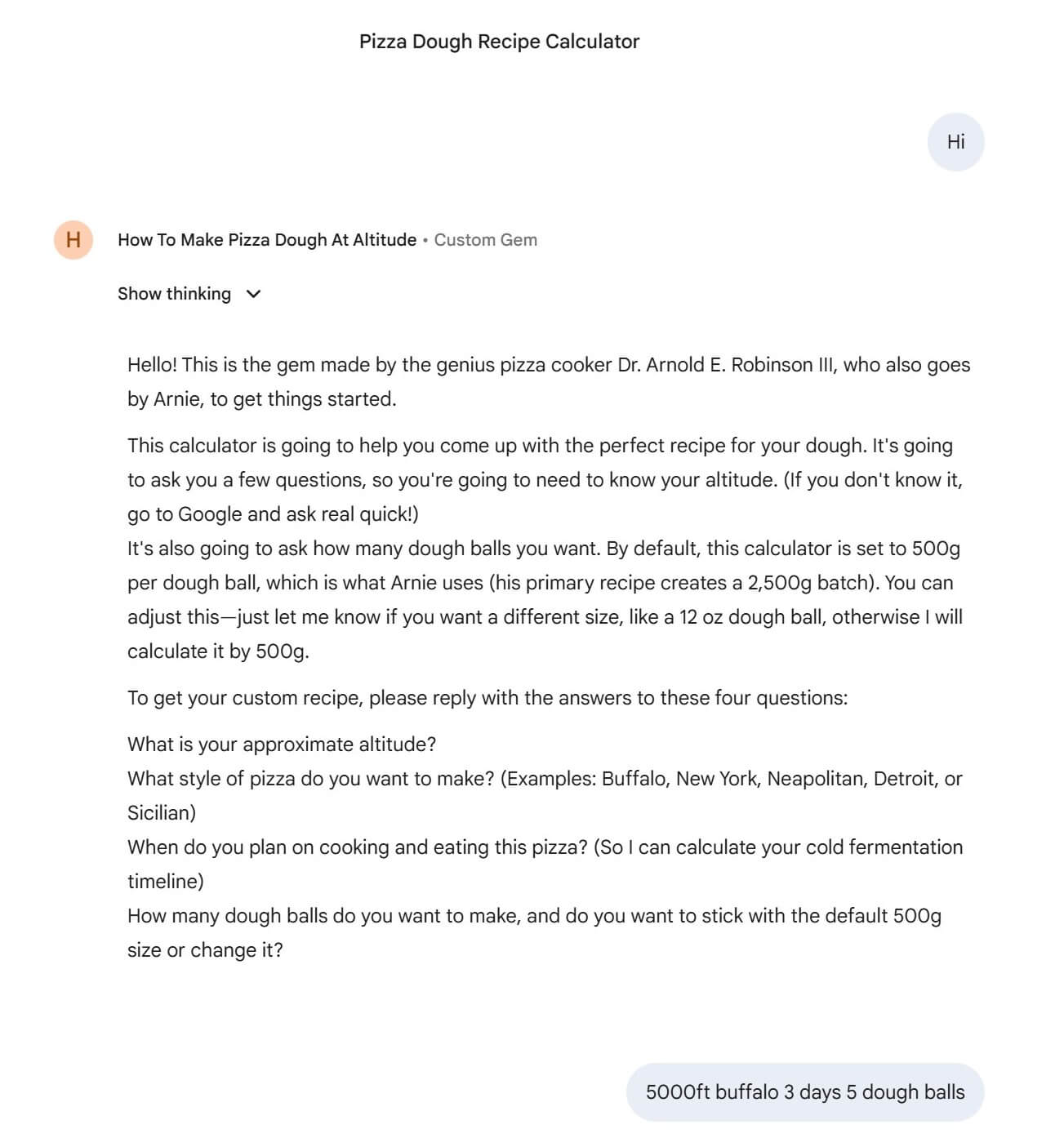
The output it generated is exactly why we went through the effort of building this in NotebookLM first.
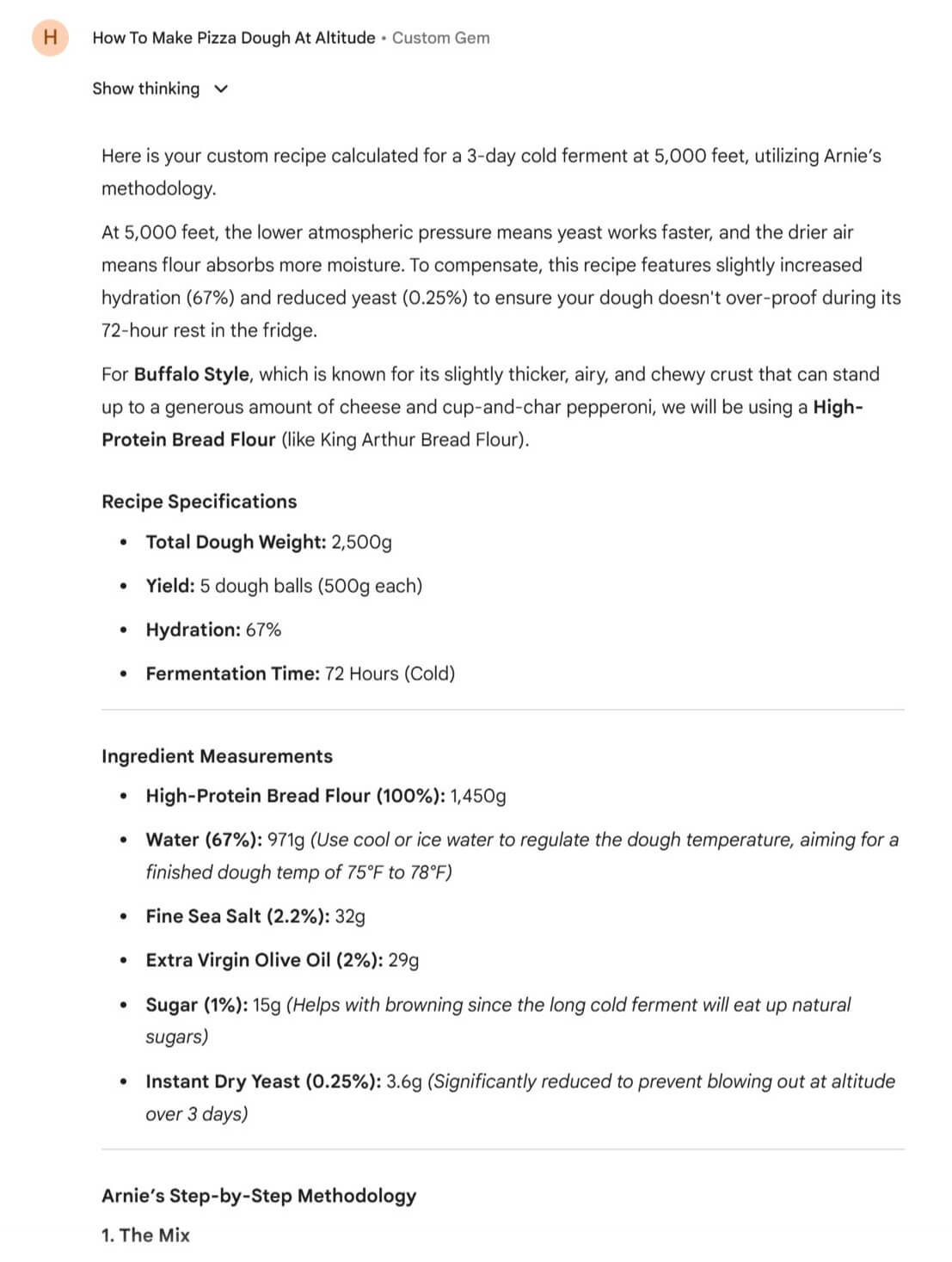
Look closely at the recipe specifications in the second screenshot. The Gem didn’t just calculate the math for a 2,500g batch; it actively applied the scientific parameters from our research. It recognized that at 5,000 feet, the drier air requires a slight bump in hydration (67%), and the lower atmospheric pressure means the yeast needs to be drastically reduced (0.25%) so the dough doesn’t over-proof during a 72-hour cold ferment. It even correctly recommended High-Protein Bread flour specifically for the Buffalo style crust.
This is the exact lesson I want you to take away for your digital marketing projects. We didn’t build a chatbot that just regurgitates the web; we built a highly specialized, interactive tool grounded entirely in custom expertise. By combining the deep research capabilities of NotebookLM with the programmable logic of Gemini Gems, you can create customized, value-driven assets for practically any niche.
What happens if your Gem spits out something weird or the math looks off? You just go right back to your Gem builder, make your change, and hit save. If you are getting a strange output format or it keeps missing a specific detail, go back into your instructions and explicitly tell it how you want that output handled. It is completely normal to do a few rounds of testing, adjusting, and saving before the Gem works exactly the way you want it to.
Conclusion: Controlling the Output
Let’s recap what we actually accomplished here and why we took these specific steps.
We didn’t just ask a generic chatbot for a pizza recipe. We started by gathering deep research, screening it for accuracy, and feeding it into NotebookLM alongside personal emails and YouTube transcripts. We explored how the Studio tools can instantly turn that raw data into visual and audio assets, and then we took that custom, hyper-specific knowledge base and programmed a Gem to act as a functional, interactive calculator.
We did this because, in digital marketing, you have to move beyond basic prompts. If you rely on the general internet for your AI outputs, you get generic results. By grounding the AI in your own curated, verified data, you eliminate hallucinations and create a tool that actually provides real, specialized value.
Go ahead and start building yours!