Uncategorized

arnold on Mar 22, 2026
Introduction
So far in this course, we’ve taken a deep dive into video editing. You started by creating a full 3-minute video using Adobe Premiere, and then we ruthlessly edited that down to a 1-minute cut using CapCut. Now, we are going to push your skills even further and create a highly engaging, high-retention 30-second video using Canva Premium and Google Gemini.
When we made the jump from 3 minutes to 1 minute, a common trap was simply chopping out a few clips and framing it as, “Here is a shorter version of my previous video.” But in digital marketing, that approach misses the mark. Understanding how to truly adapt content is crucial. You aren’t just cutting for time; you are completely redesigning the concept and delivery to match a different format and a much shorter attention span.
The Pizza Example: Think about making a video about baking a homemade pizza:
-
The 10-Minute Video: You dive deep into the details—the science of the yeast, the hydration ratios of the dough, the history of the recipe, and a slow, step-by-step walkthrough.
-
The 1-Minute Video: You drop the history and science. It becomes a straightforward, visual recipe showing the ingredients mixing, the dough rising, and the pizza baking, guided by a quick voiceover.
-
The 30-Second Video: The concept changes entirely. It’s no longer a tutorial; it’s an experience. It’s a fast-paced, energetic montage: a slam of flour on the counter, a quick dough toss, bubbling cheese in the oven, and a dramatic cheese pull.
For this assignment, we will be editing our how-to videos down even further. Instead of simply chopping up your 1-minute cut, I want you to completely rethink your concept to deliver a fast-paced, high-impact 30-second narrative. Think of this not as a shorter tutorial, but as a visually engaging teaser that grabs the viewer’s attention instantly.
To accomplish this, you will use Gemini as your creative assistant to help brainstorm your new hook and generate custom background music, and we will use Canva Premium as your fast-paced editing suite to bring that new vision to life. Let’s get started.
Step 1: AI Brainstorming & Concepting (Gemini)
The secret to a high-performing 30-second video isn’t just faster editing—it’s developing a completely fresh concept before you even touch the timeline. In this step, you will use Gemini as your own personal AI producer. You are going to feed your previous 1-minute video into the AI, ask it to analyze your content, and collaborate with it to brainstorm a new angle, script a scroll-stopping 3-second hook, and figure out exactly what fluff you need to cut.
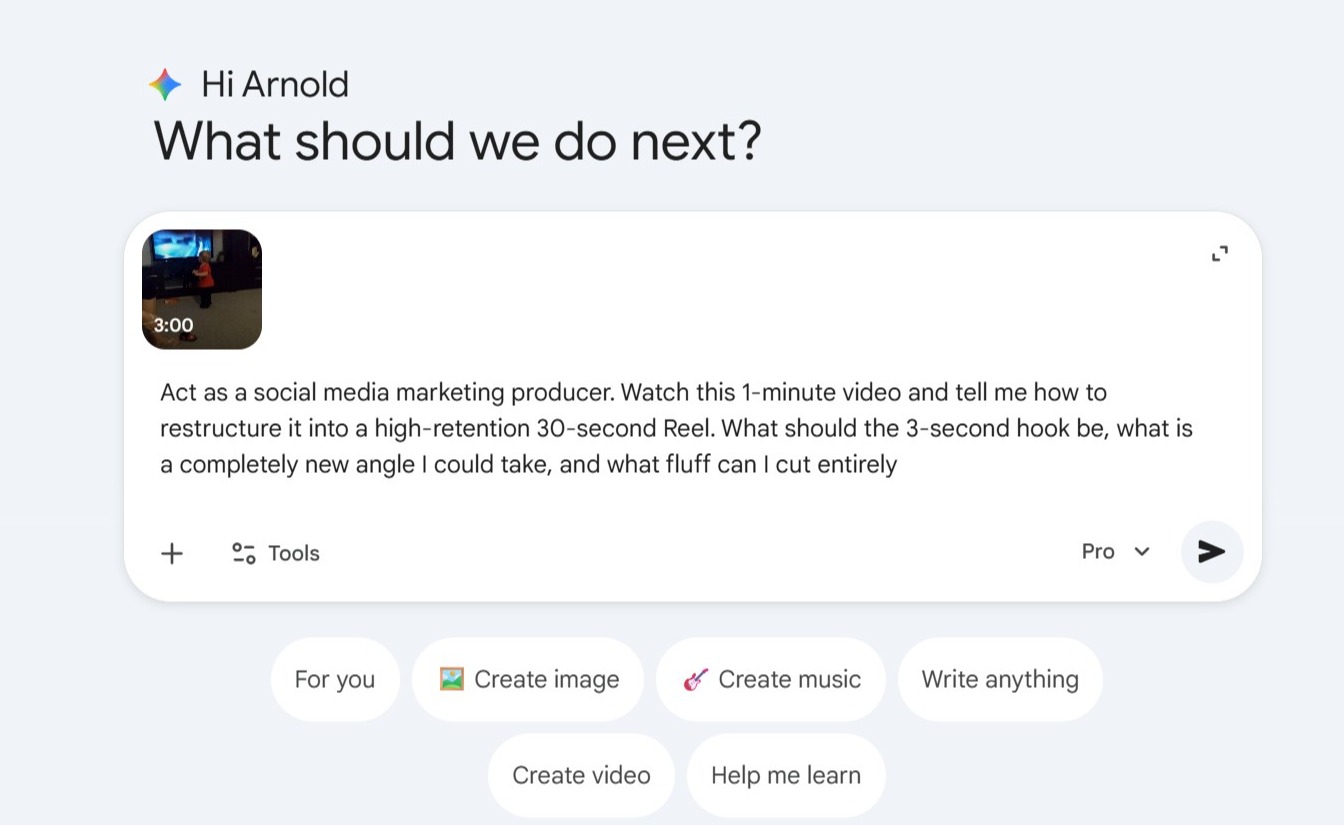
Provide Your Video to Gemini: Open Gemini. You have two ways to share your 1-minute video so the AI can analyze it:
-
Direct Upload (MP4): Click the “+” icon next to the prompt box and select your exported 1-minute MP4 file to upload it directly.
-
YouTube Link: If you uploaded your 1-minute cut to YouTube (it can be set to Public or Unlisted), simply paste the YouTube URL directly into your prompt. Gemini’s YouTube extension will analyze the video from the link.
Suggested Prompt: > “Act as a social media marketing producer. Watch this 1-minute video and tell me how to restructure it into a high-retention 30-second Reel. What should the 3-second hook be, what is a completely new angle I could take, and what fluff can I cut entirely?”
**
Refine and Iterate: Treat Gemini like a brainstorming partner. Review its suggestions, and if you don’t love the first idea, ask follow-up questions to refine the concept!
-
Examples: “Can you give me an idea for a hook that is more controversial/funny?” or “Which specific shots from my video do you think are the strongest to keep for the background visuals?”
Decide on Your Direction: Review Gemini’s final suggestions and lock in your new angle before moving to Canva.
Review Gemini’s suggestions and decide on the new angle for your 30-second cut.
Refine and Iterate: Treat Gemini like a brainstorming partner. If you don’t love the first suggestion, ask follow-up questions to refine the concept!
-
Examples: “Can you give me an idea for a hook that is more controversial/funny?” or “Which specific shots from my video do you think are the strongest to keep for the background visuals?”
Decide on Your Direction: Review Gemini’s suggestions and lock in your new angle before moving to Canva.
Here is Step 2 with a clearer, more straightforward title and the industry jargon removed:
Step 2: The 30-Second Visual Edit (Canva Premium)
Now that you have a solid game plan from Gemini, it’s time to execute that vision. In this step, you will take your raw footage into Canva Premium to build your high-impact 30-second cut. You’ll set up a vertical video workspace, aggressively trim your clips, add engaging text elements, and finalize your visual edit before we even think about music.
1. Setting Up Your Project
-
Log into Canva Premium and select a vertical format. For this workflow, selecting the TikTok Video or Mobile Video template will work perfectly.
-
Once your workspace opens, you’ll see your timeline at the bottom and your tools on the left-hand sidebar.
2. Importing and Arranging Clips
-
Go to the Uploads tab on the left sidebar to bring in your raw video files.
-
Drag and drop your clips directly onto the video timeline at the bottom of the screen.
-
Navigation Tip: You can scroll left and right on the timeline, or hold
Ctrl(orCmdon Mac) and scroll your mouse wheel to zoom in and out of the timeline so you can see all your clips at once.
3. Basic Cutting and Splitting
-
Press the Spacebar to play and pause your video.
-
To make a cut: Drag the playhead (the vertical line on your timeline) to the exact spot you want to cut. You can either right-click the clip and select Split, or simply press the S key on your keyboard.
-
To delete a clip: Click on the section you want to remove, right-click, and hit Delete (or just press the Backspace/Delete key). Canva will automatically snap your remaining clips together so there is no dead space.
4. Adding Text and Elements
-
Click the Text tab to drag and drop basic text or pre-made font combinations onto your video.
-
Click the Elements tab to add graphics, shapes, or stickers.
-
Once an element or text box is on your screen, it will also appear as a purple block on your timeline above your video clips. You can click and drag the edges of this purple block to make the text stay on screen for a longer or shorter duration.
5. Managing Original Audio (No Music Yet!)
-
If your video clips have spoken dialogue, make sure you can hear it clearly. You can click on any video clip in the timeline, click the speaker icon, and adjust the volume.
-
Do not add any background music yet! Focus entirely on getting your visuals, text, and spoken audio perfectly timed. You need to finalize your exact 30-second visual edit first.
6. Export Your Visual Cut
-
Once your 30-second video is perfectly edited, click Share in the top right corner, then Download.
-
Select MP4 Video and download it to your computer. You will need this file for the next step!
Step 3: AI Music Scoring (Gemini)
Now that you have your final 30-second visual edit exported, it needs the perfect soundtrack. Gemini generates exactly 30-second music tracks, making it incredibly simple to custom-score your Reel or TikTok. Whether you need a clean, upbeat instrumental for a marketing video or a hilarious 90s-style rap diss track about pizza, you can create it in seconds.
1. Open the Music Tool
-
Go back to Gemini and look for the Create Music button.
2. Prompting Your Track You have two main ways to approach getting the perfect sound for your video:
-
Let AI Analyze Your Edit: Upload the MP4 of your 30-second Canva edit directly into Gemini. Tell it: “Analyze this video and generate an audio track that perfectly fits the pacing and vibe.”
-
Write a Custom Prompt: If you already know exactly what you want, just tell Gemini the specific genre, mood, and tempo.
-
Example (Professional): “Generate an instrumental short-form reel track that is modern, upbeat, and clean.”
-
Example (Creative/Funny): “Write a 90s hip-hop diss track background music about making pizza.” (Note: You can even give Gemini specific words or themes you want it to rhyme!)
-
3. Review and Download
-
Gemini will generate a track for you based on your prompt. Listen to it and see if it fits your video’s energy. If it doesn’t, tweak your prompt and try again.
-
Once you have the perfect track, click the download button and select Audio only. This will save the file as an MP3 to your computer, which you will need for the final step.
Here is a quick video showing exactly how to make music with Gemini:
Step 4: The Final Mix & Export (Canva Premium)
You have your perfectly timed 30-second visual edit and your custom AI audio track. Now it’s time to bring them together for the final mix.
1. Back to Canva
-
Return to your open Canva project with your 30-second video edit.
2. Import Your Music
-
Go back to the Uploads tab on the left-hand sidebar, click Upload Files (or drag and drop), and bring in the MP3 track you just downloaded from Gemini.
3. Drop it on the Timeline
-
Drag your new audio file onto the timeline, placing it directly beneath your video clips. Since Gemini generates exactly 30 seconds of audio, it should fit your edit perfectly!
4. Balance the Audio
-
Click on the audio track in your timeline, click the speaker icon at the top, and adjust the volume. If your video features spoken dialogue, make sure the background music is turned down low enough that your voice is still the star of the show.
5. Final Review & Export
-
Watch your video all the way through one last time. Does the 3-second hook grab attention? Are the cuts fast? Does the music elevate the vibe?
-
If it looks and sounds great, click Share in the top right corner, then Download.
-
Select MP4 Video (make sure the quality is set to 1080p), hit download, and you are ready to submit your final assignment!
Wrapping Up
Mastering short-form content isn’t just about knowing how to use editing software; it’s about understanding your audience’s attention span and knowing how to adapt a core message for different platforms. By using AI to brainstorm fresh angles and generate custom audio, and pairing that with a fast-paced editor like Canva, you are building a modern, highly efficient content creation workflow. Have fun with this one, get creative with your AI prompts, and I can’t wait to see your final 30-second cuts!